
Hakros UltraSearch
A downloadable tool for Windows
User Guide
HAKROS ULTRASEARCH is a local code search and project analysis tool designed to help you explore large source code repositories quickly.
It can search files and symbols, inspect relationships between classes and other elements, review project structure, track useful items and navigate source code without sending project files outside your computer.
Application translated into the following languages:
- Chinese
- Czech
- Dutch
- English
- Finnish
- French
- German
- Hindi
- Irish
- Italian
- Japanese
- Korean
- Norwegian
- Polish
- Portuguese
- Russian
- Spanish
- Swedish
- Ukrainian

Getting Started
- Open HAKROS ULTRASEARCH.
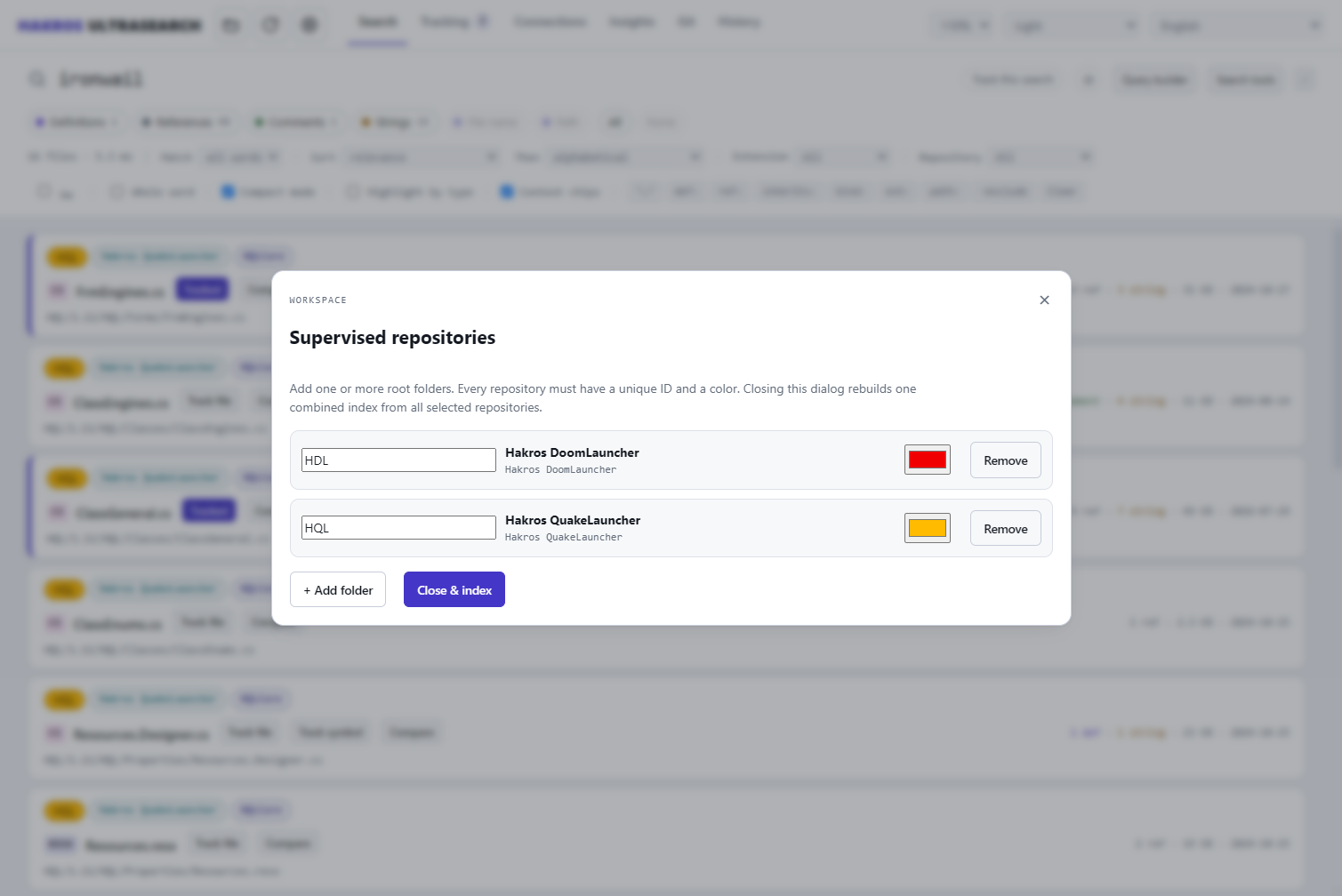
- Choose the project folder you want to analyse.
- Wait for the project to be indexed.
- Use the main tabs to search, inspect relationships, review project insights or navigate your history.
Once a project has been indexed, its information is stored locally and can be restored in later sessions.
Main Sections
Search
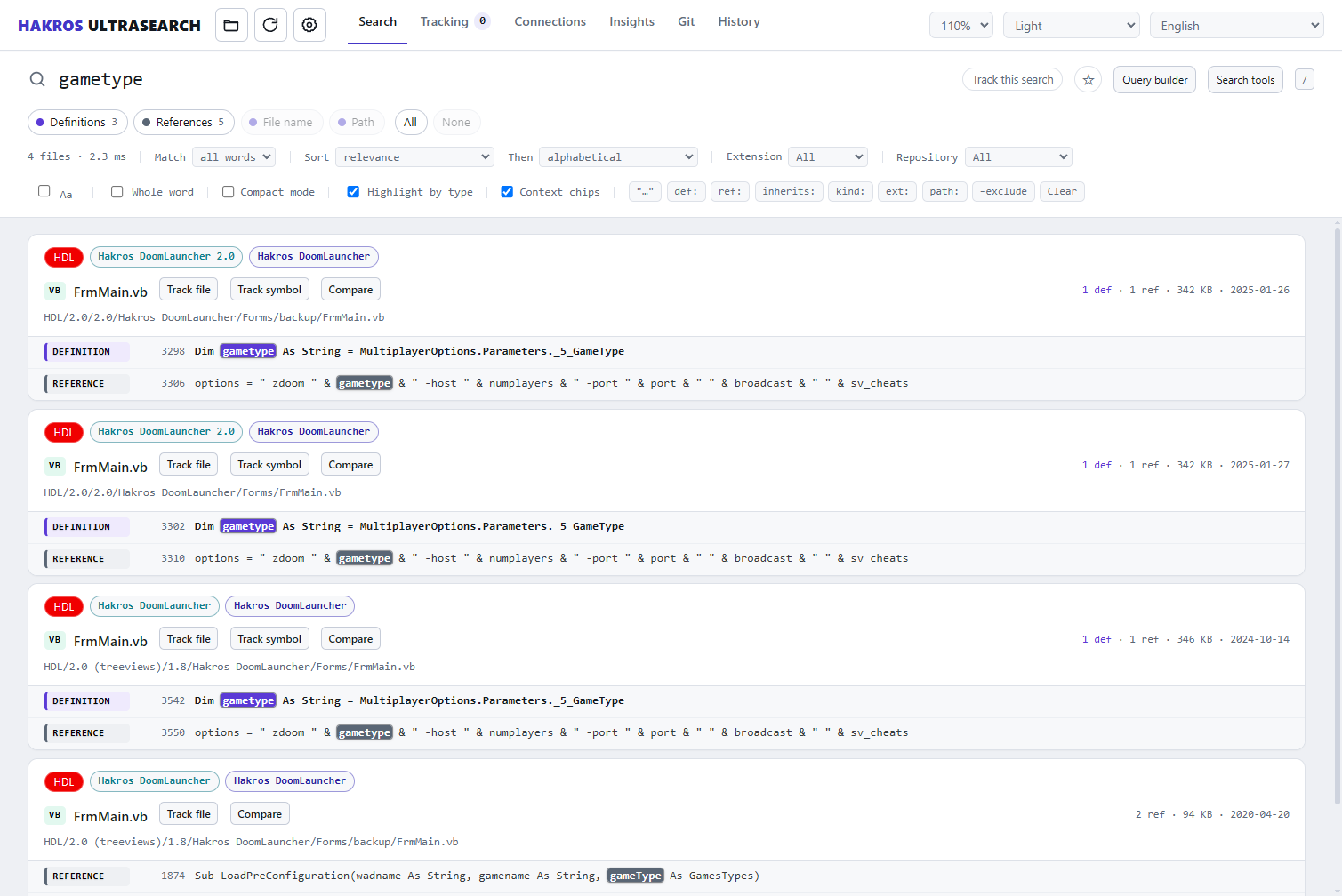
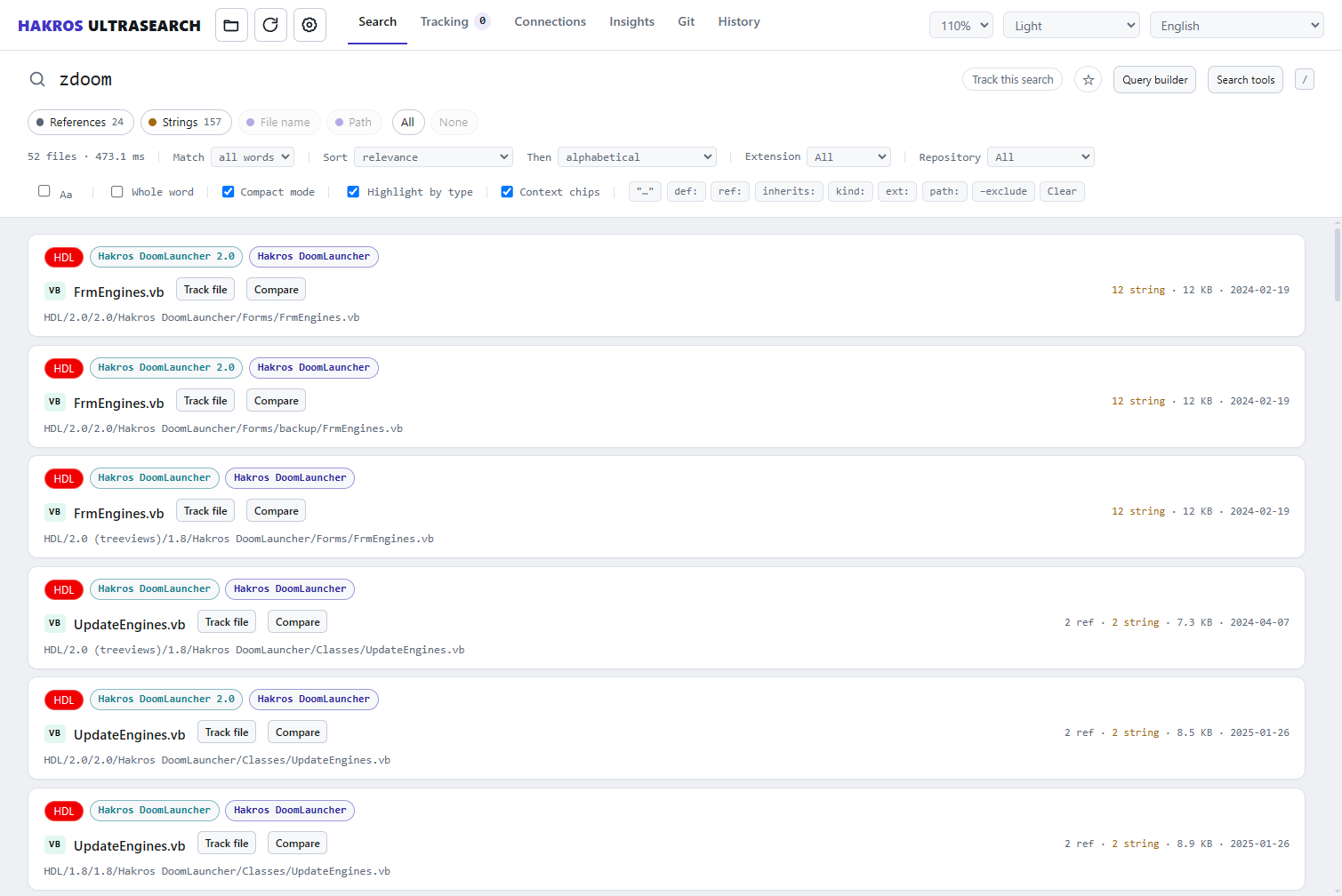
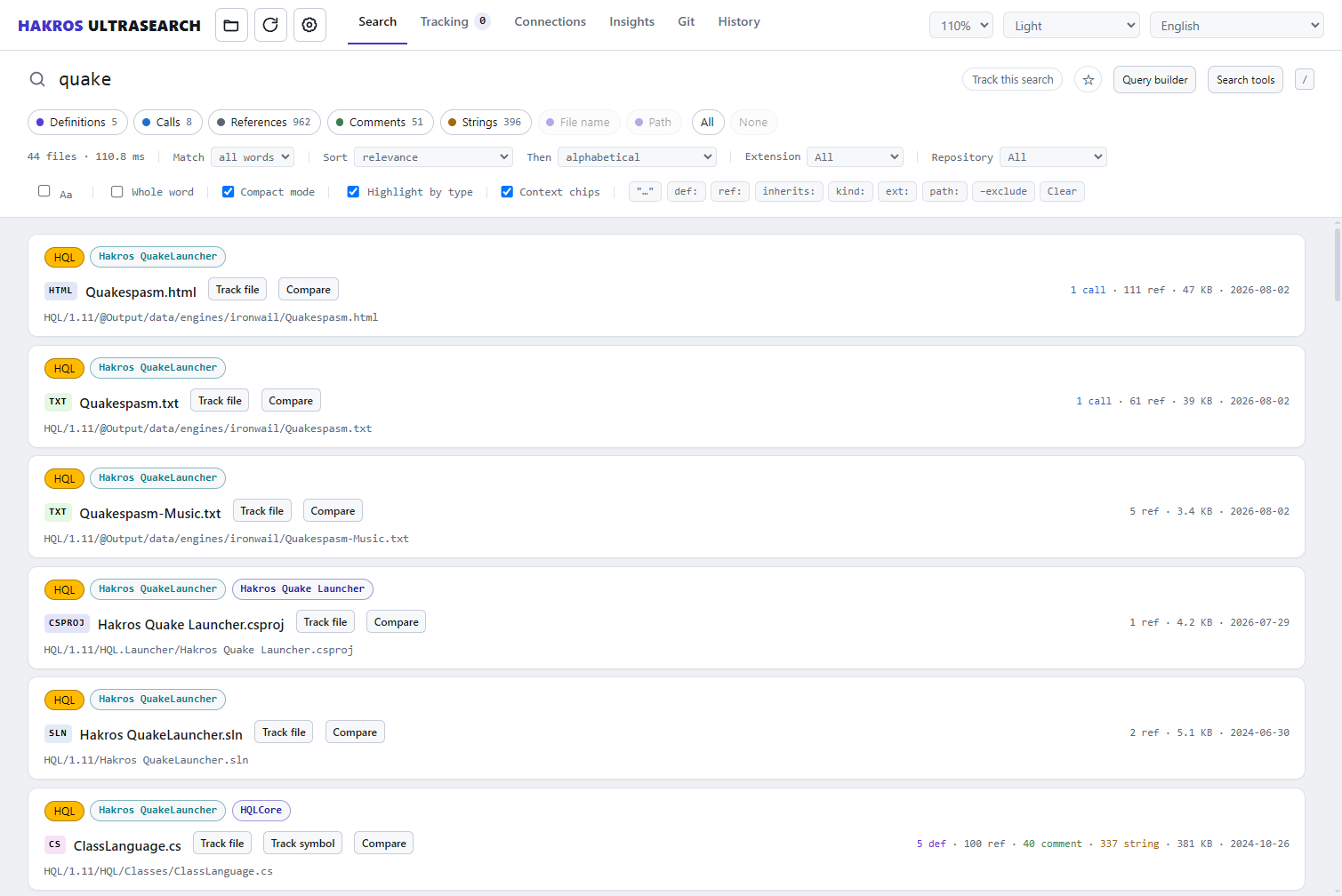
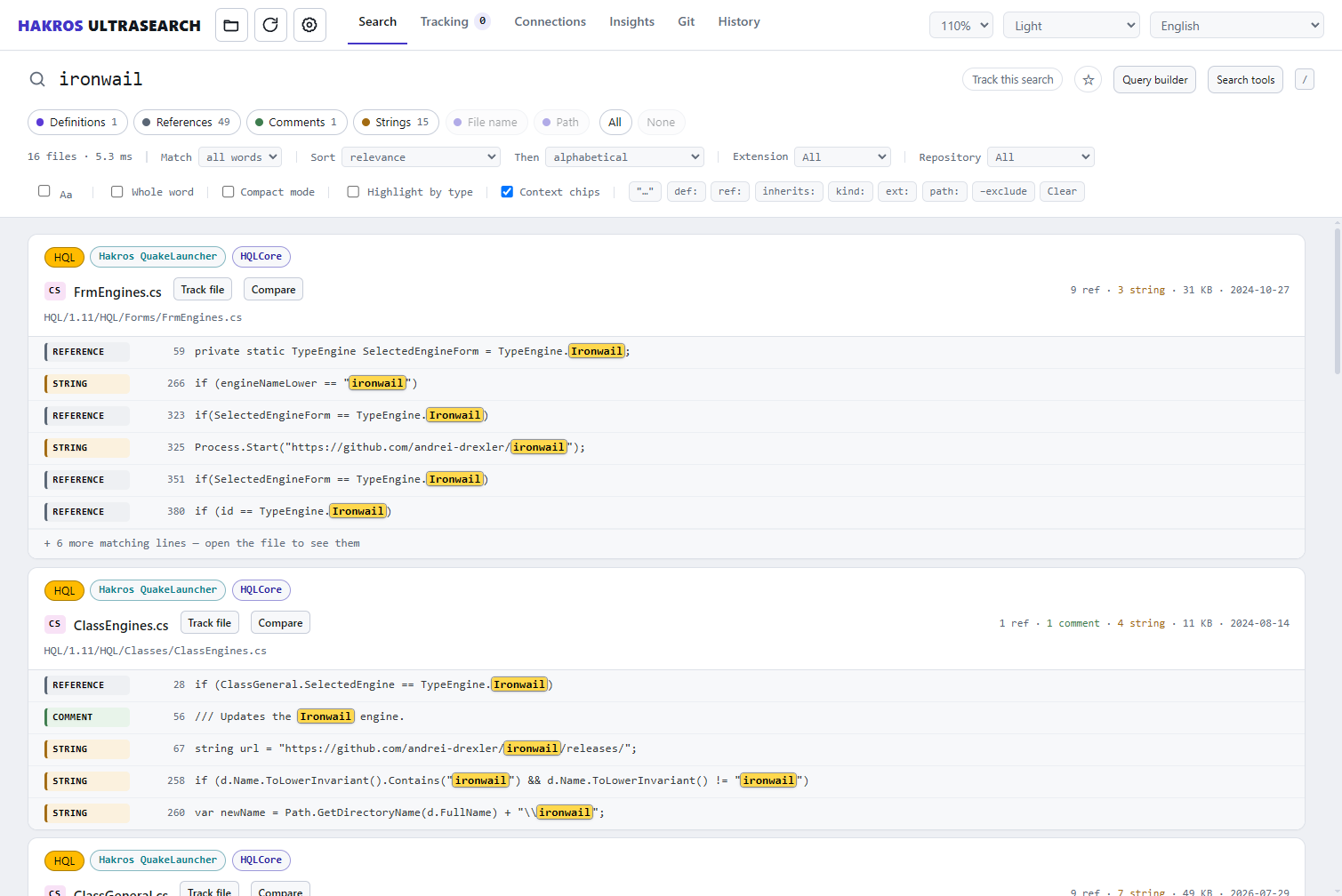
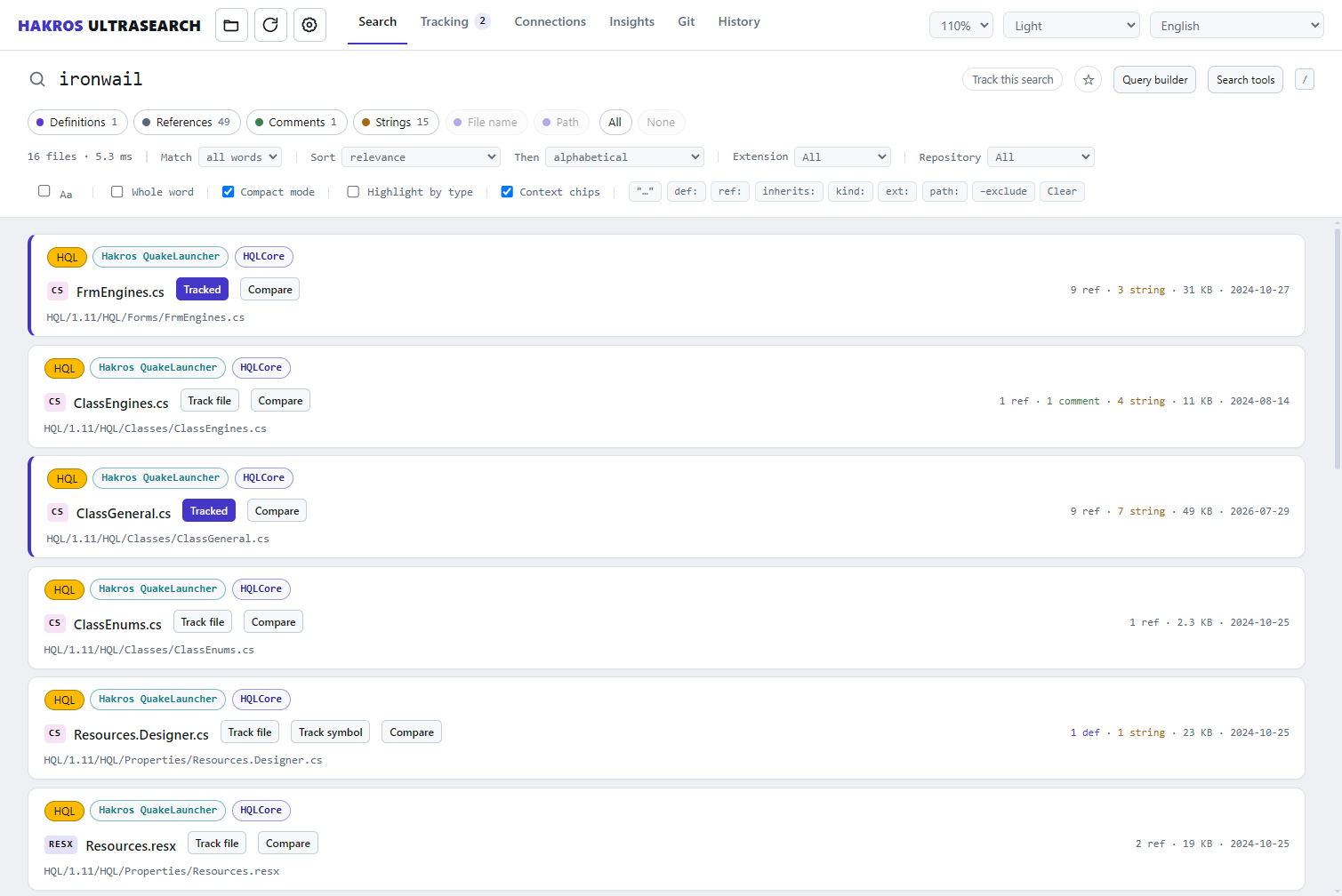
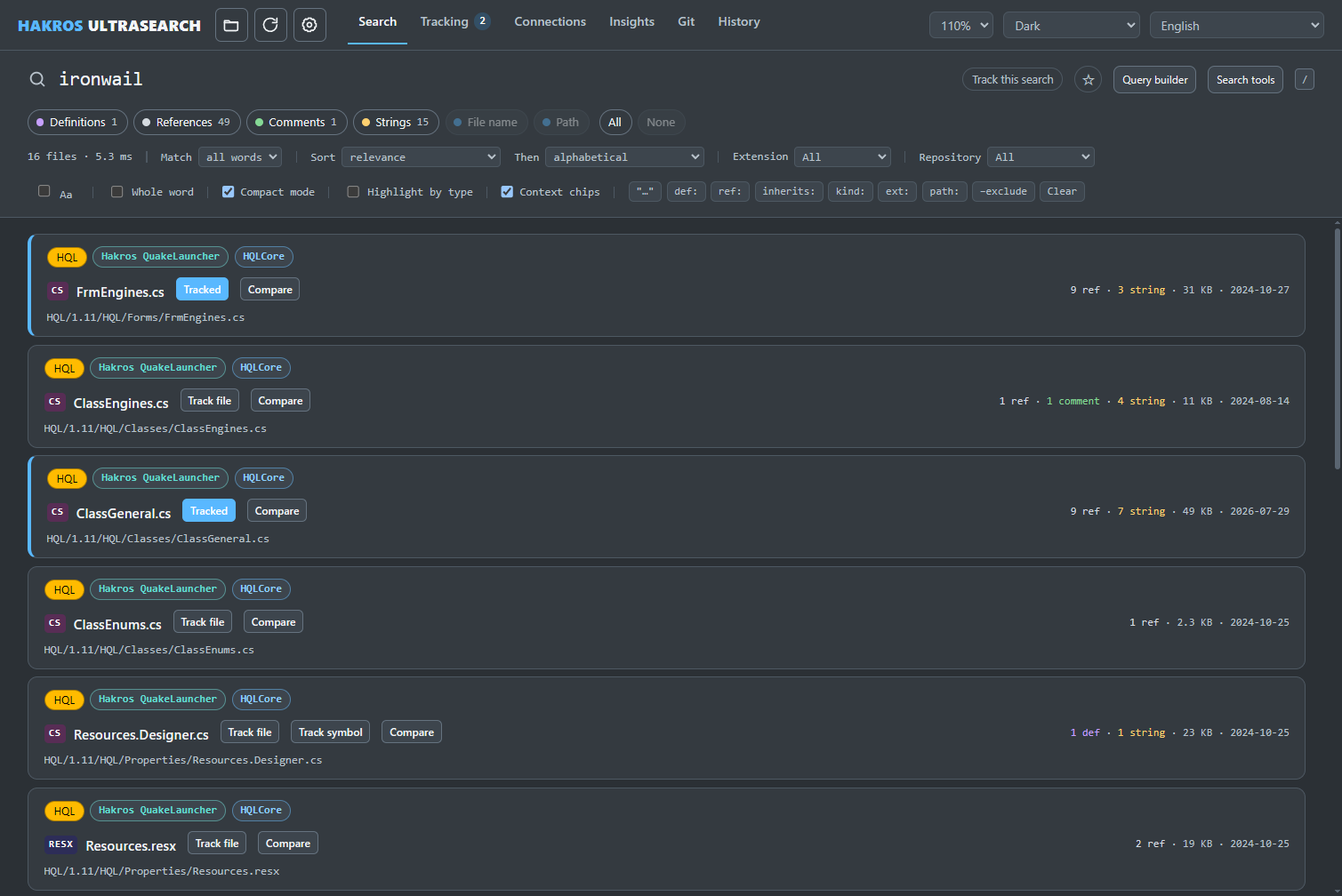
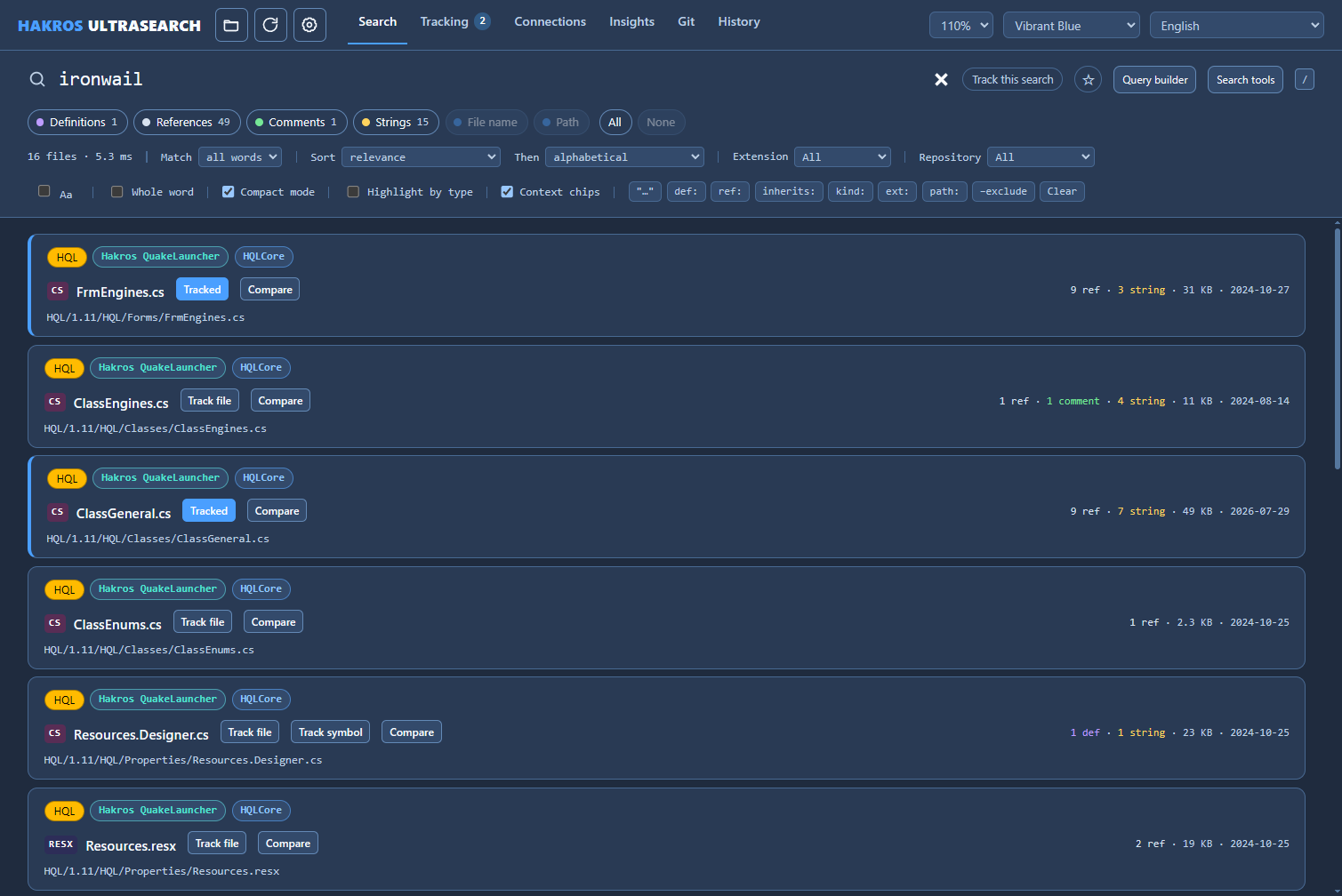
Use Search to find text, symbols, classes, methods and other indexed content.
Enter a query in the search field and use the quick filters to restrict the results to available match types such as:
- Definitions
- Instantiations
- Calls
- References
- Imports
- Comments
- Strings
- File name
- Path
Filters with no results are hidden when appropriate.
Additional search tools allow you to refine how queries are interpreted, save useful searches and control result behaviour.
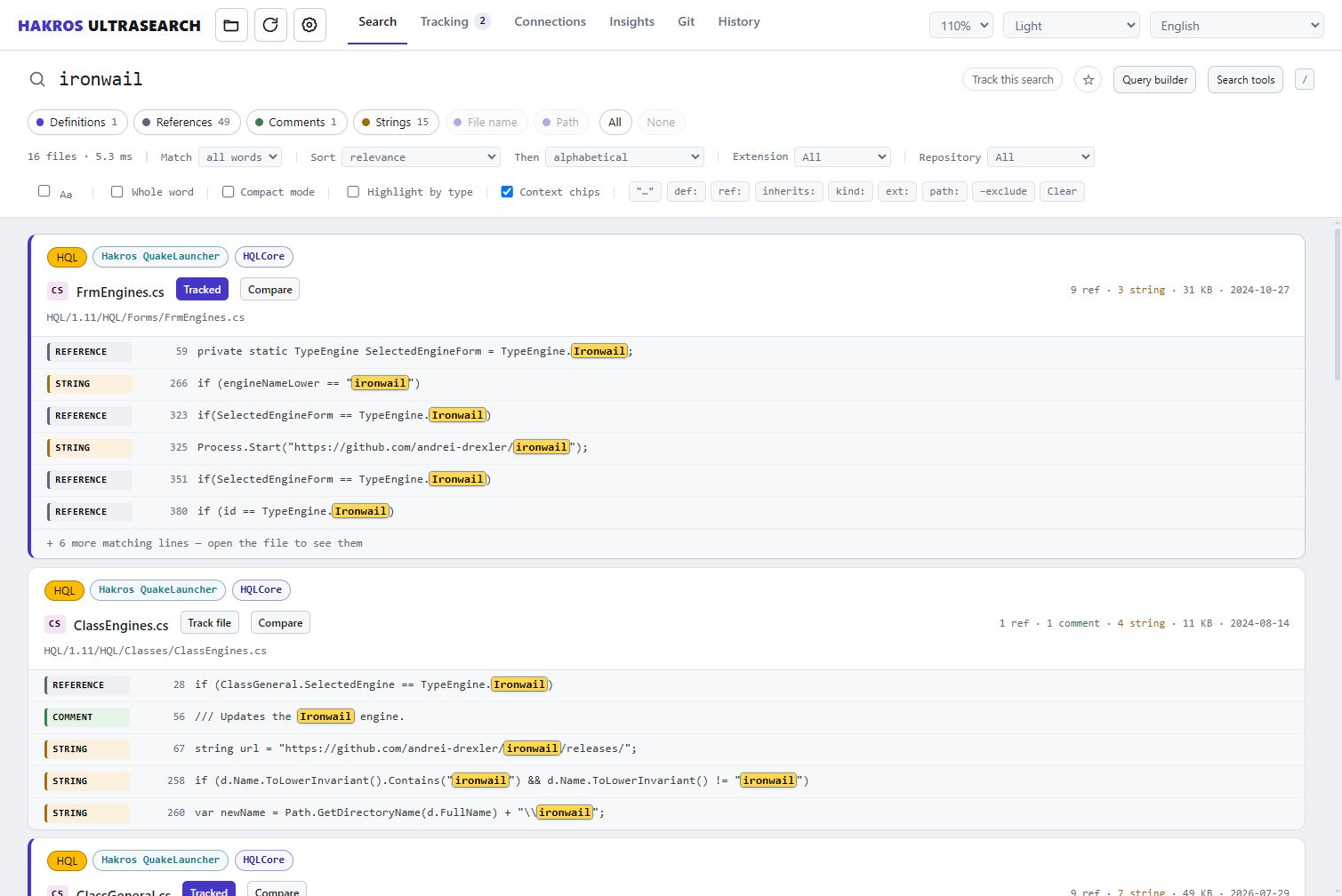
You can also track a search for later use.
Tracking
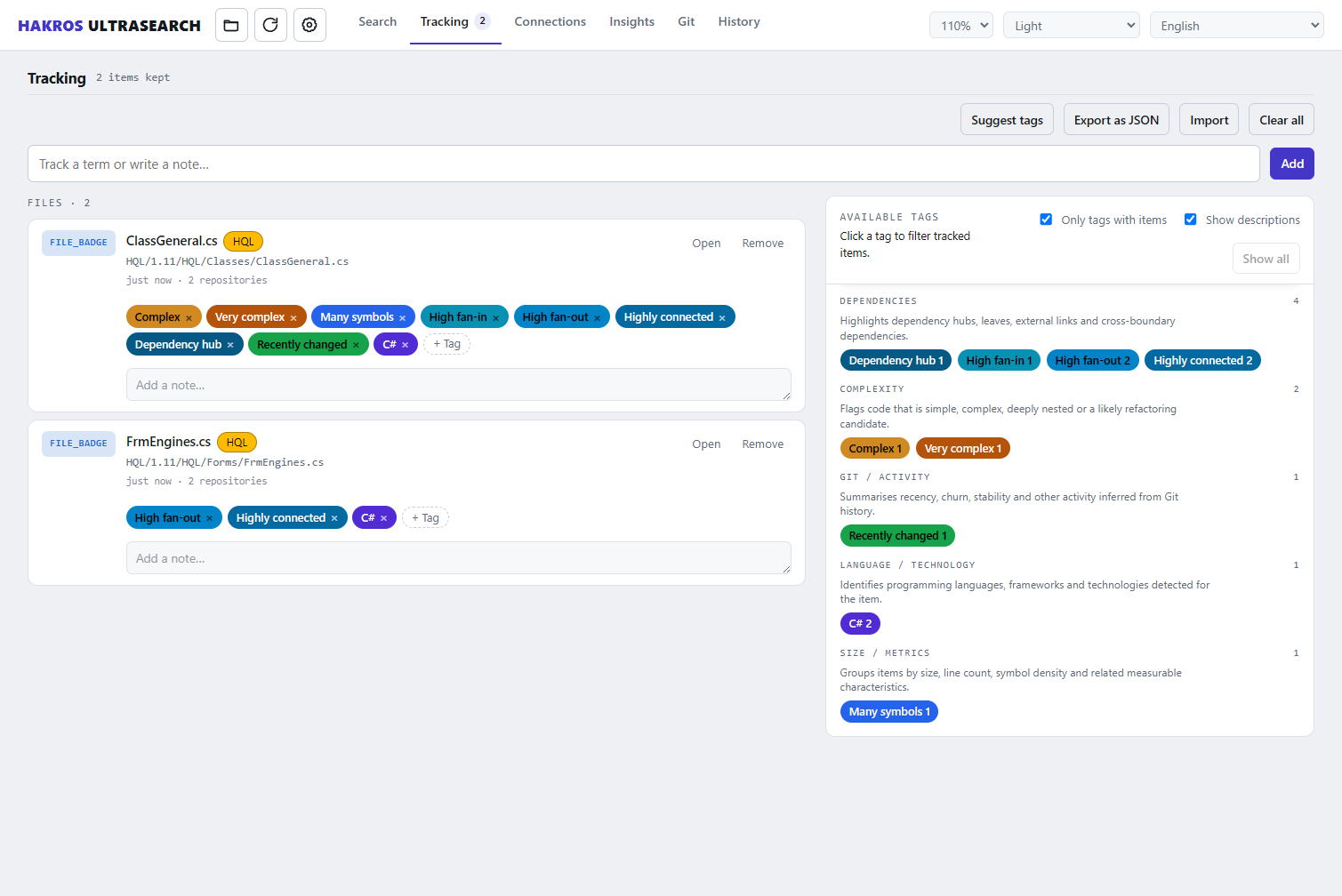
The Tracking section stores searches, files, symbols and personal notes that you want to keep available.
Tracked items remain available after reloading the application.
You can:
- Open tracked files or searches
- Add notes
- Assign tags
- Filter tracked items by tag
- Remove individual items
- Import or export tracking data
Connections
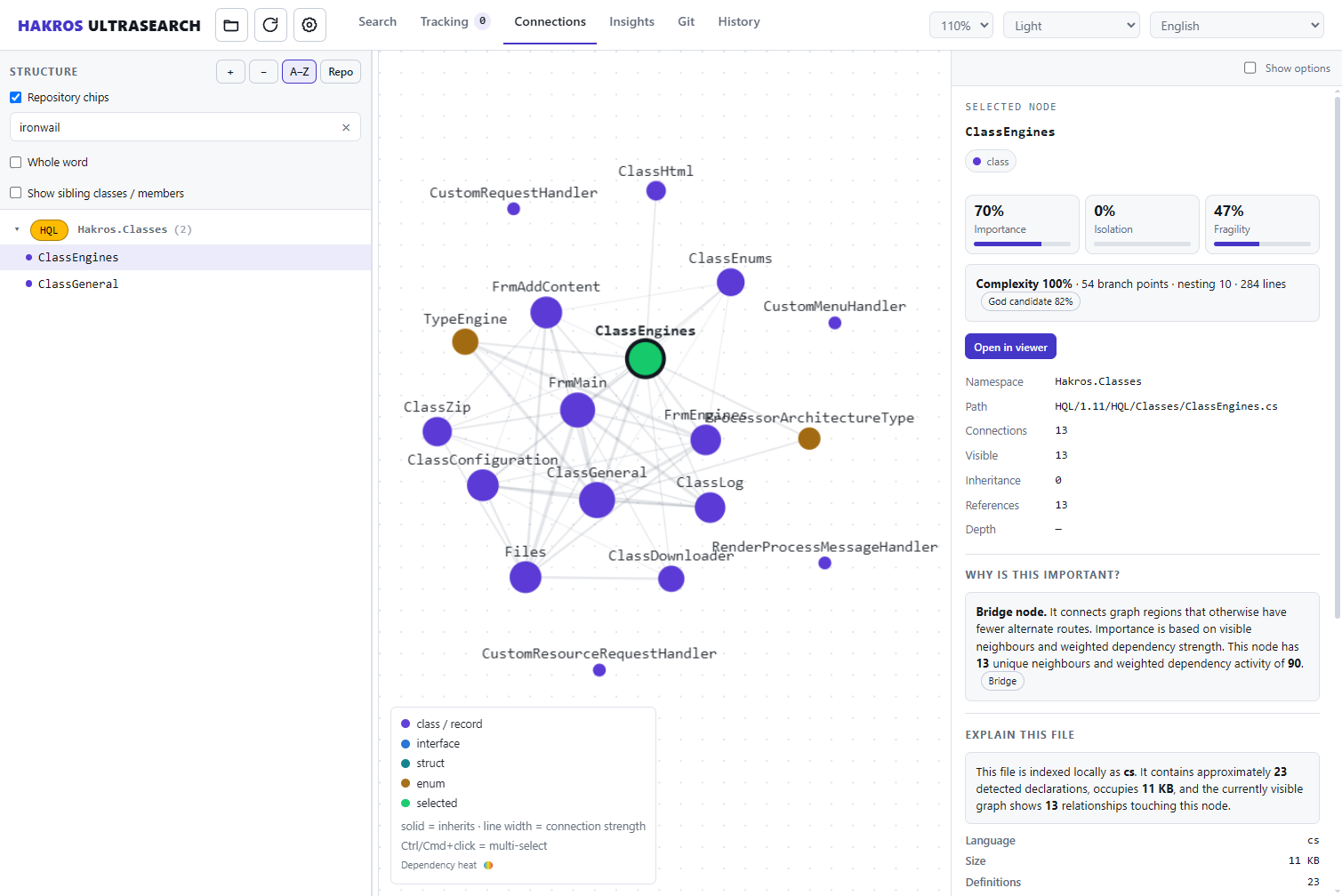
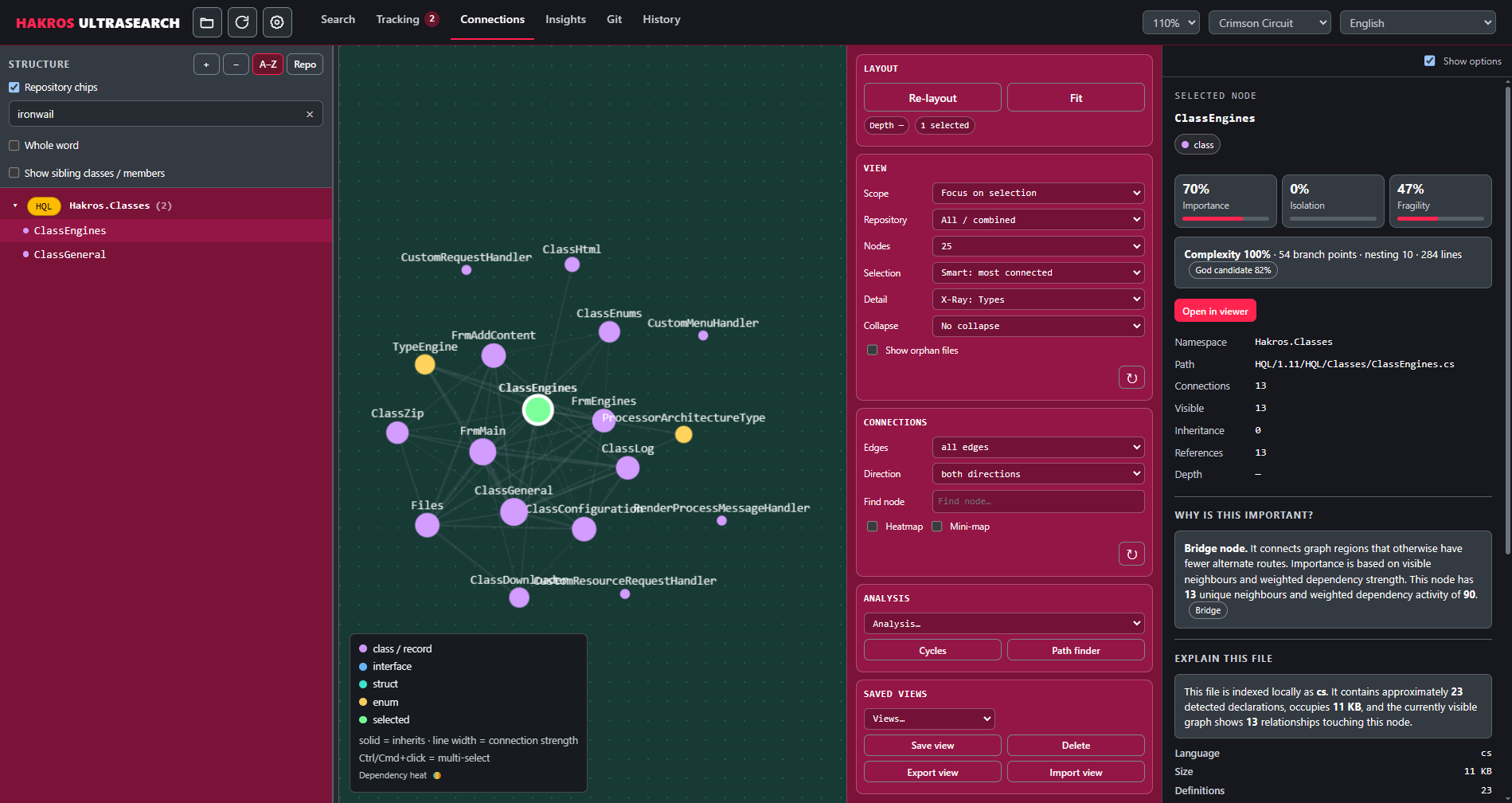
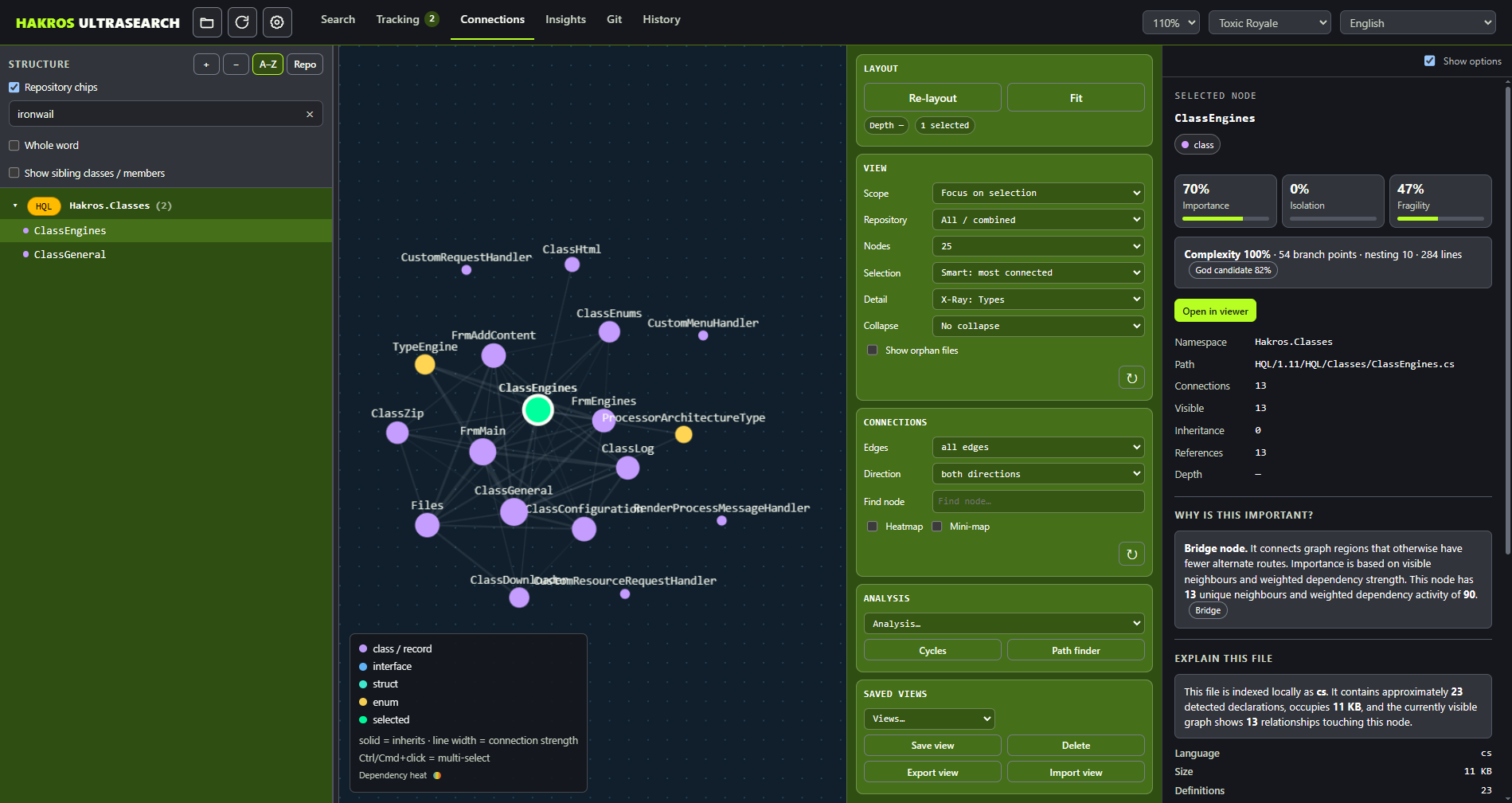
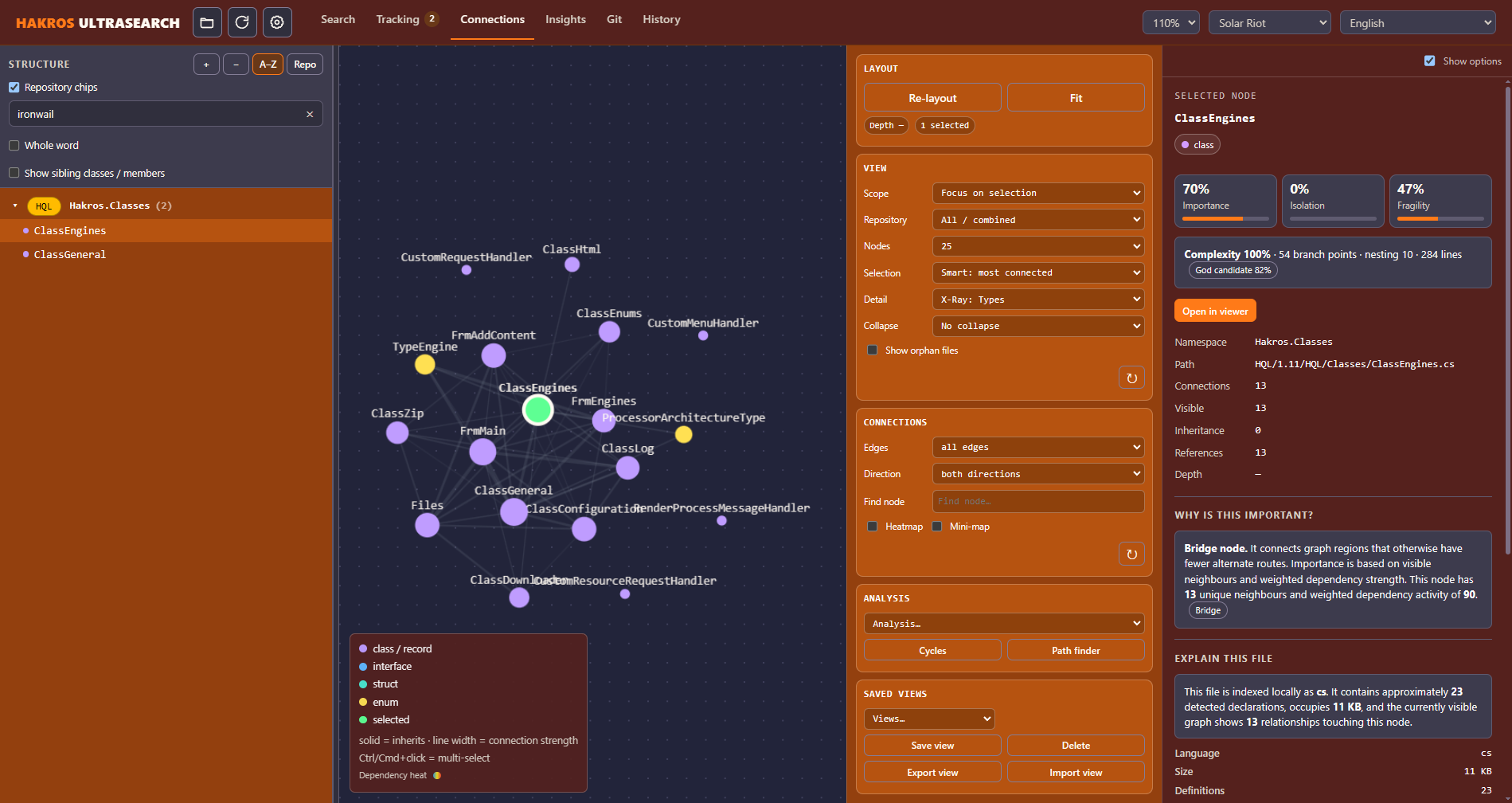
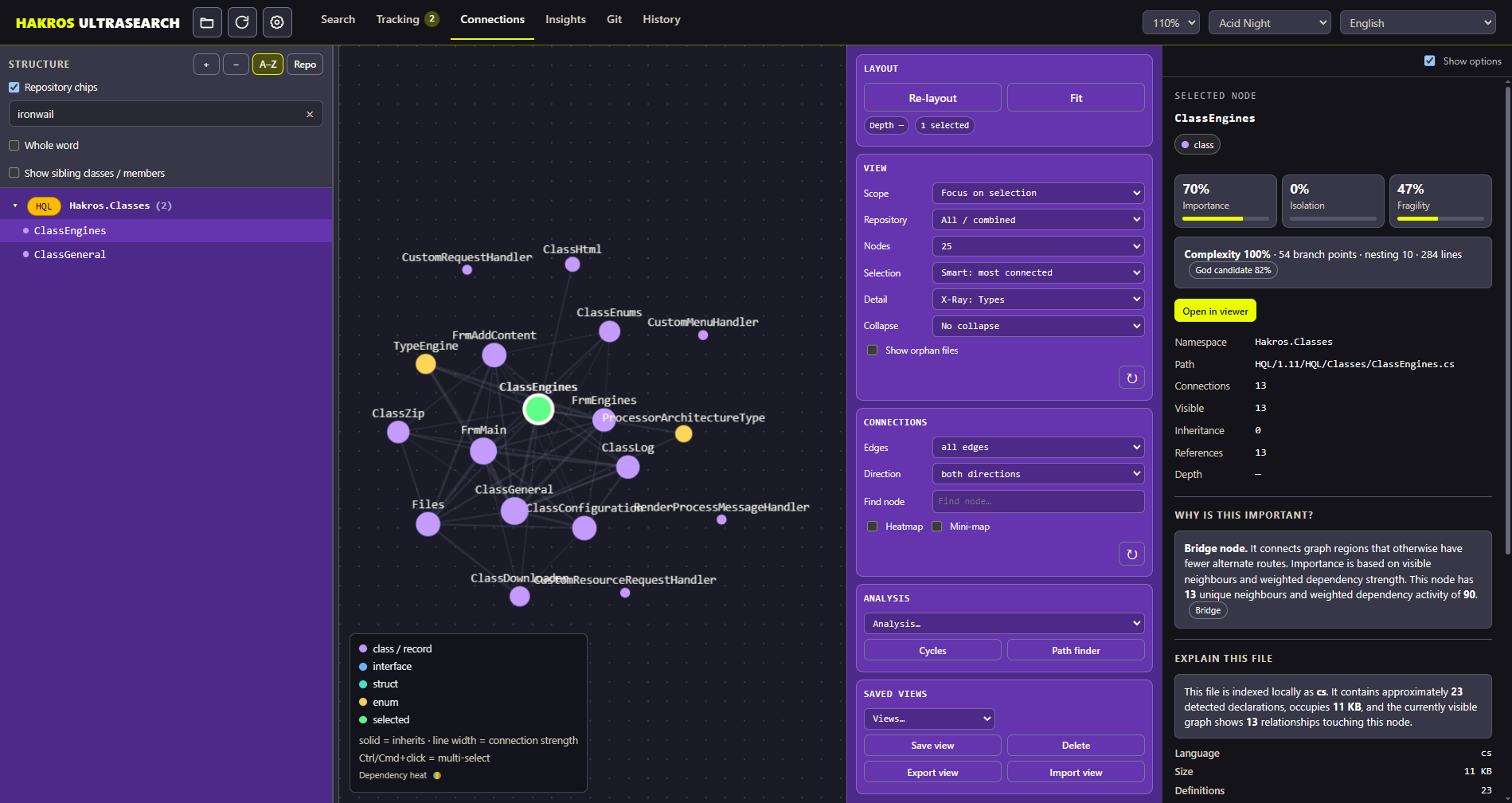
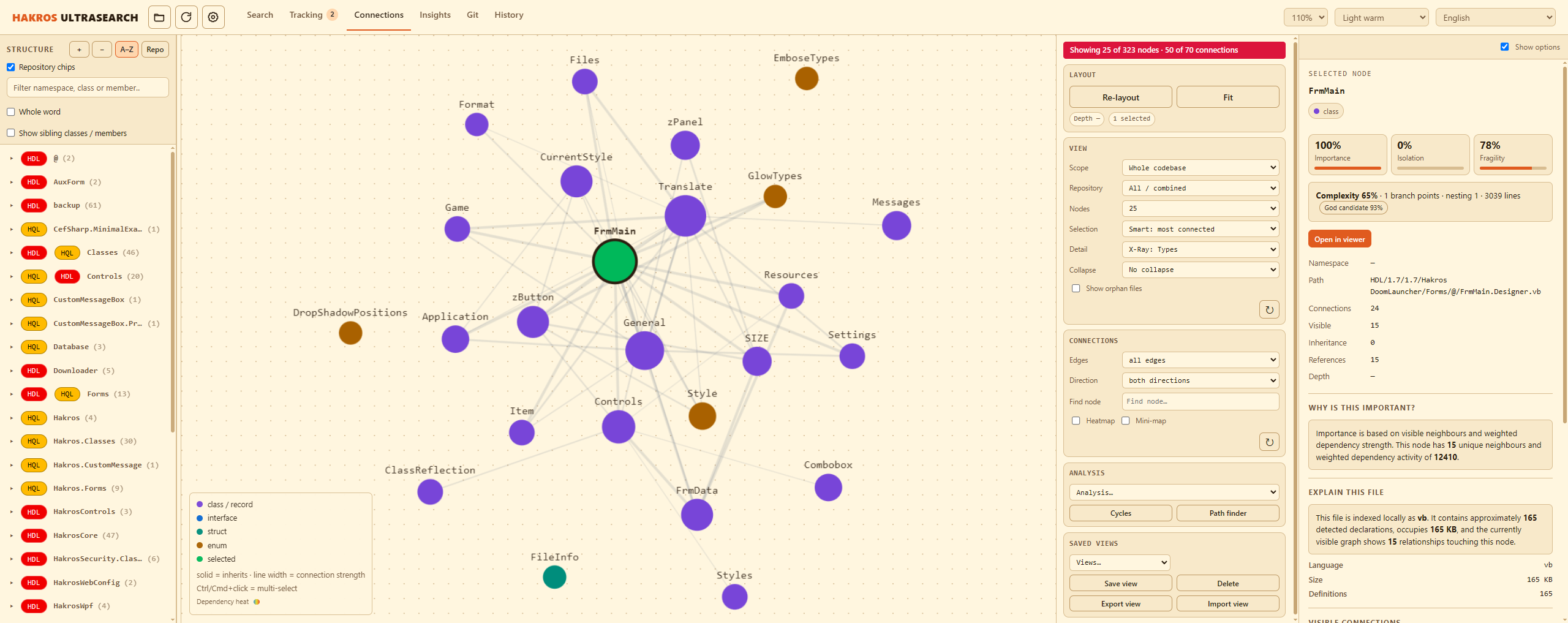
The Connections section provides a visual representation of relationships detected inside the project.
Nodes represent indexed project elements and connections represent detected relationships between them.
Select a node to view detailed information such as:
- Importance
- Isolation
- Fragility
- Complexity
- Namespace
- Source path
- Number of connections
- Related elements
The graph can be filtered, reorganised and focused on specific areas of the project.
Available analysis tools include cycle detection, path finding, orphan detection and several structural views.
Code Viewer
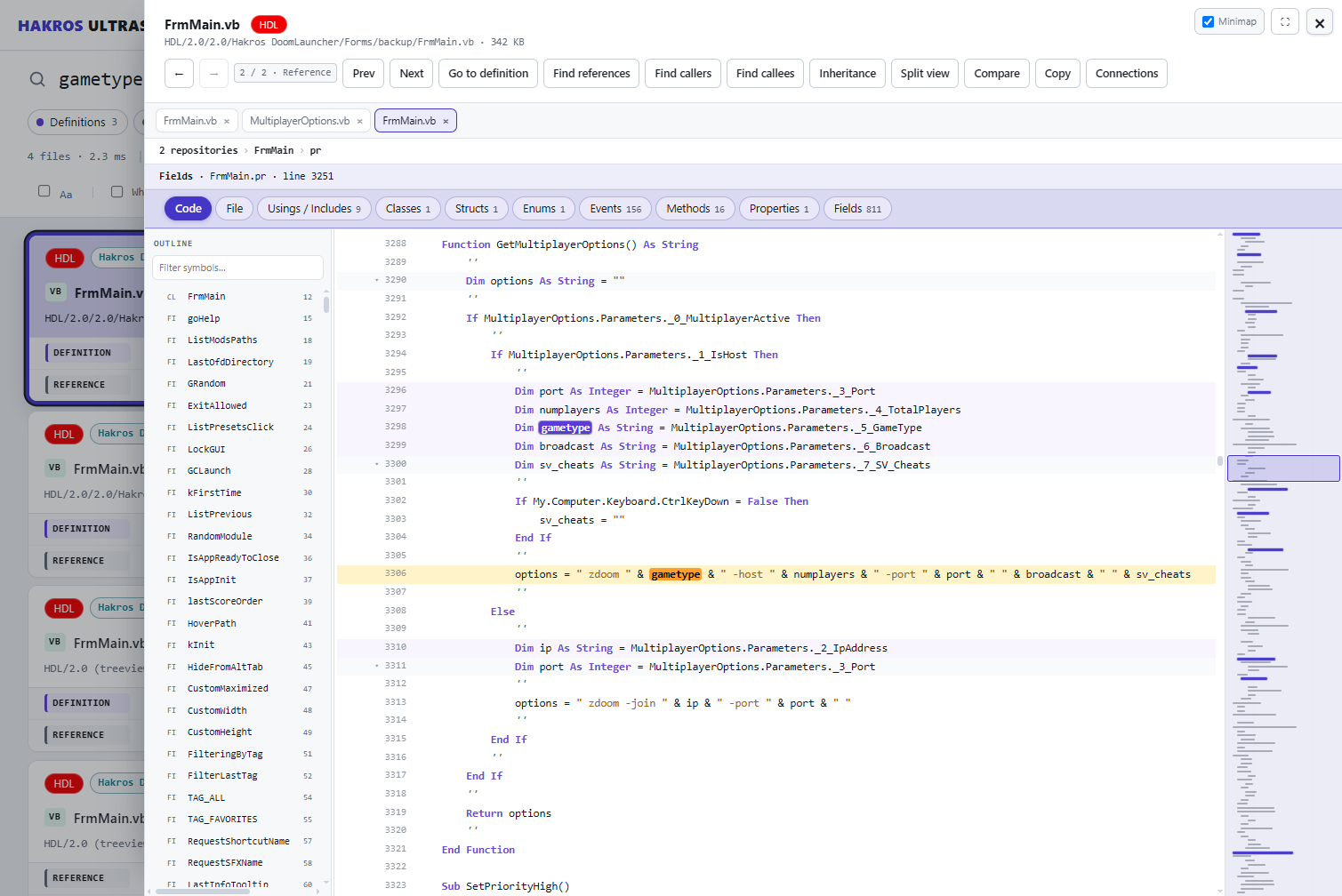
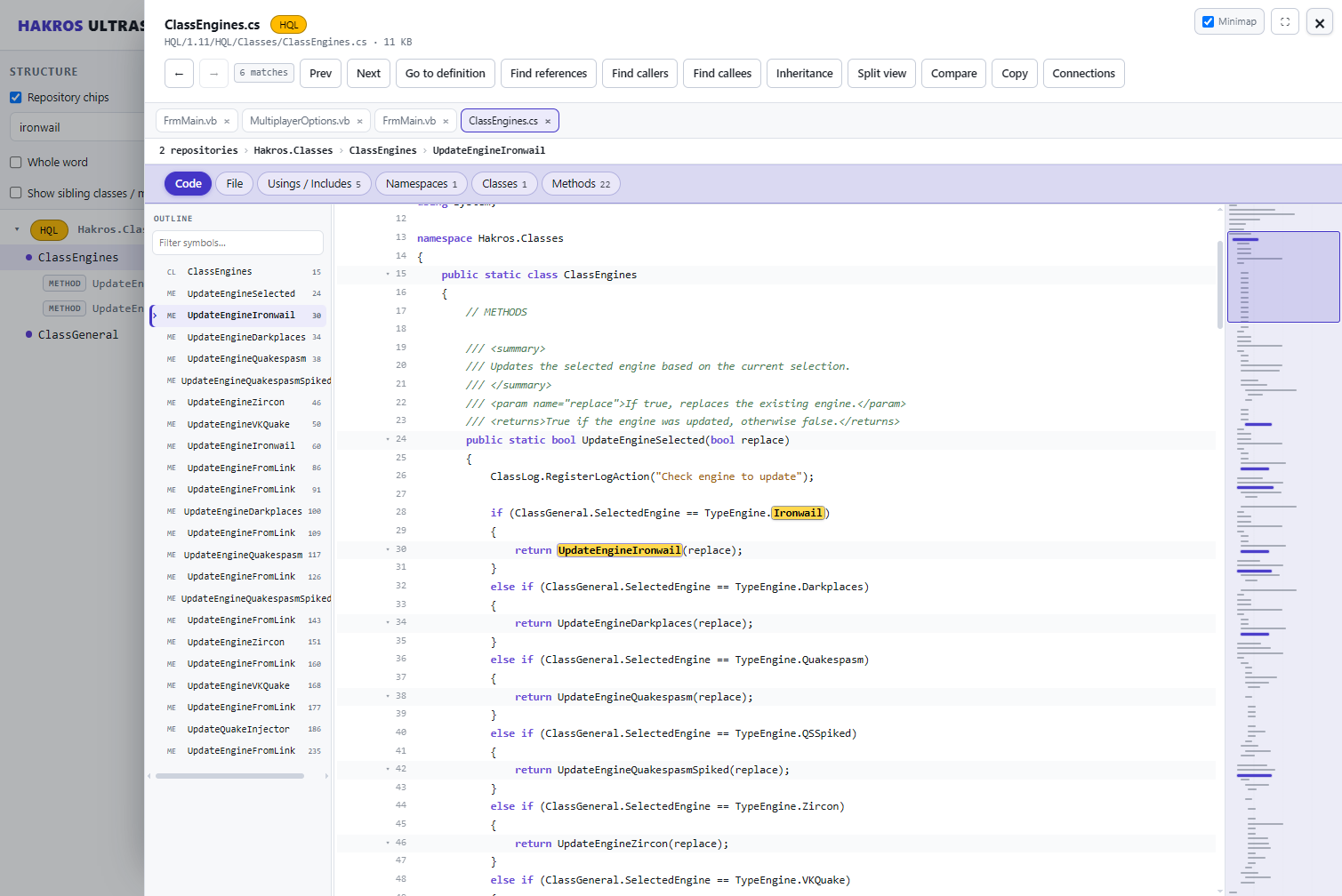
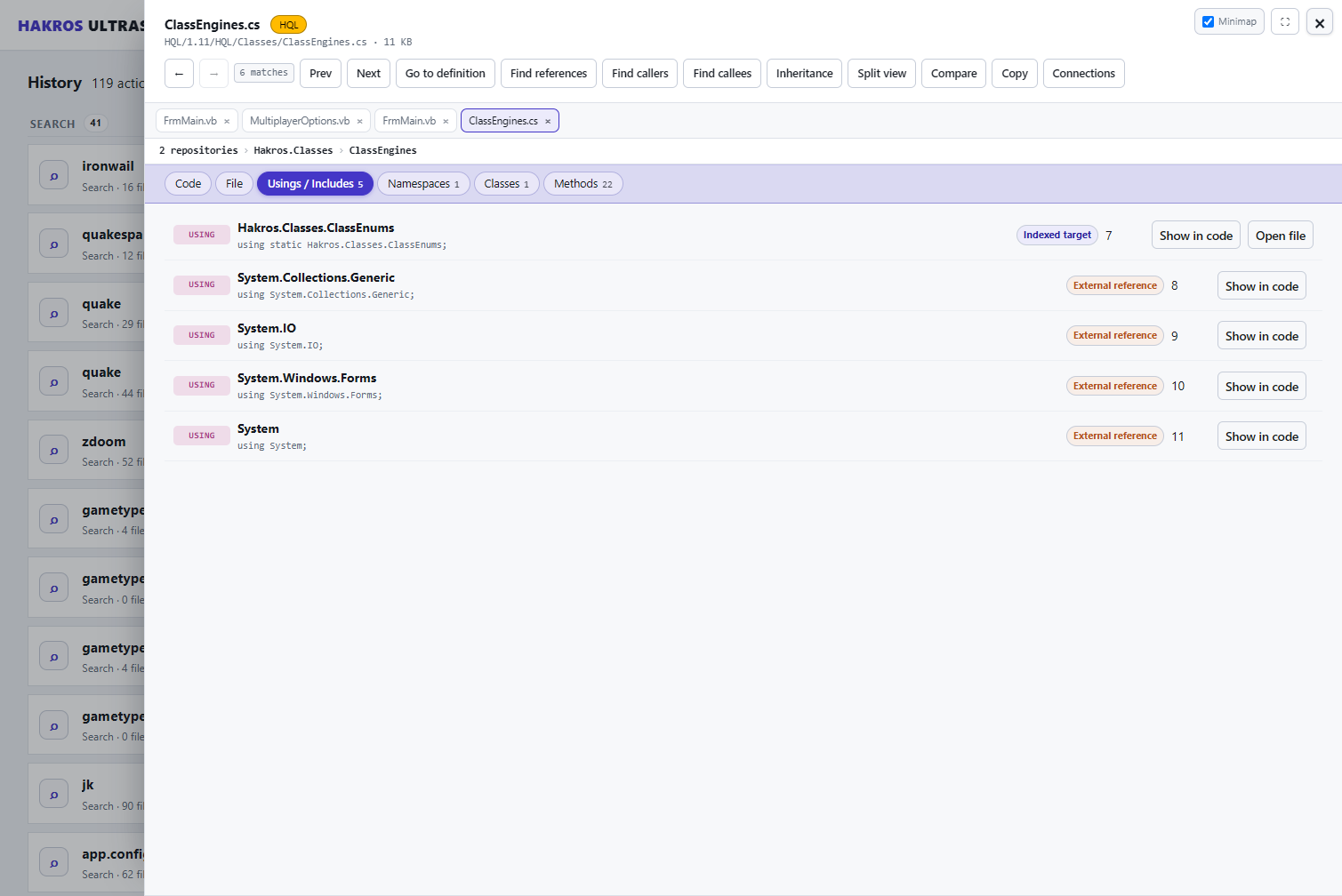
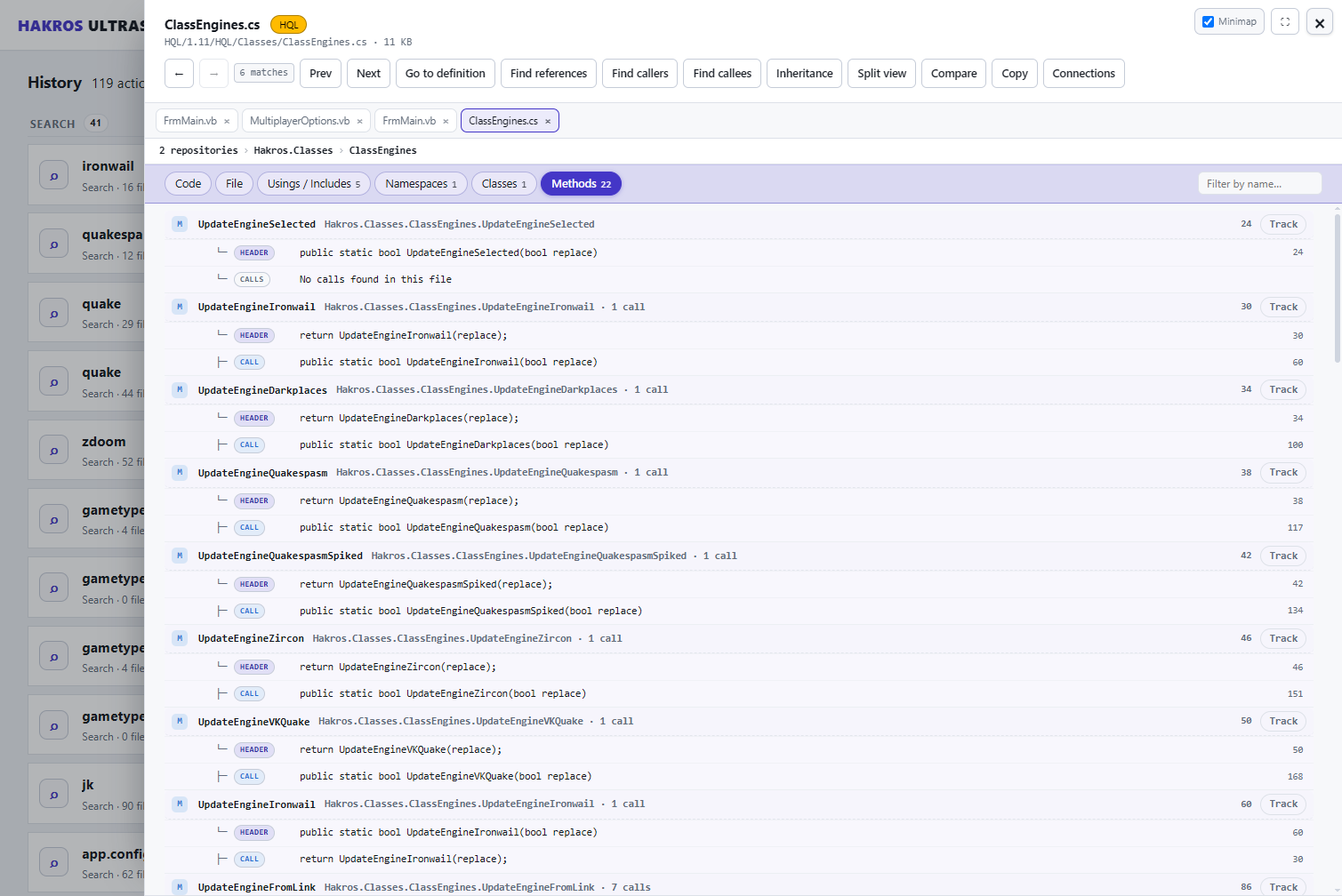
Files are opened inside the built-in Code Viewer.
The viewer provides:
- Syntax highlighting
- Multiple open file tabs
- Symbol outline
- Classes, structures, enums, methods, properties and events
- Breadcrumb navigation
- Previous and next navigation
- Go to definition
- Find references
- Find incoming calls
- Find outgoing calls
- Inheritance information
- Split view
- File comparison
- Code minimap
- Copy options
Selecting a symbol from the outline or symbol lists moves directly to its declaration and highlights it in the source code.
Double-clicking an identifier attempts to open its definition. If the definition is located in another indexed file, that file is opened automatically.
The standard Code Viewer can also be resized by dragging its left edge, or expanded to use the full window.
Insights
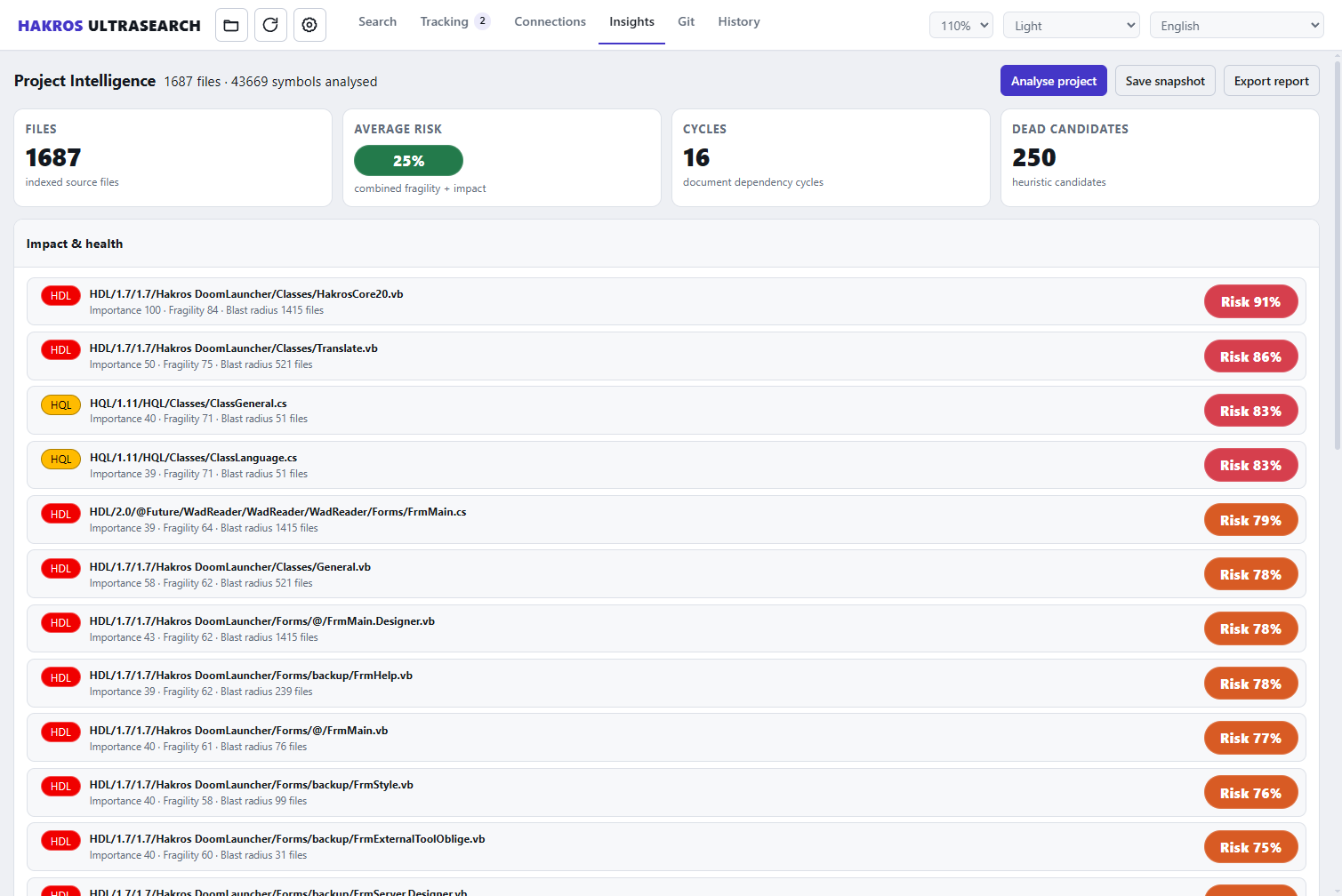
The Insights section provides a higher-level overview of the project.
It can highlight areas such as:
- Project size
- Average structural risk
- Dependency cycles
- Dead code candidates
- High-impact files
- Fragile areas
- Complex files
- Architecture changes
Risk values use colour-coded indicators to make important items easier to identify.
You can analyse the project again, create snapshots and export reports.
Snapshots
Snapshots preserve a structural view of the project at a particular moment.
They can be used to compare the current project with previous states and identify architecture changes or regressions.
Snapshots can be reviewed and removed individually.
Git
The Git section analyses available Git repository information inside the selected project.
If the selected folder contains multiple repositories, they are shown independently.
Use this section to review recent repository activity and available history information.
History
The History tab records relevant actions performed while using the application.
Examples include:
- Searches
- Opening source files
- Viewing code
- Selecting project elements
- Navigating between important areas
Previous actions can be opened again directly from the History panel.
Opening an action from History does not create another identical history entry.
Consecutive identical actions are also not duplicated.
Search History and Saved Searches
Frequently used searches can be preserved for later use.
Saved searches may retain their associated options and filters, making it easier to repeat complex queries without recreating them manually.
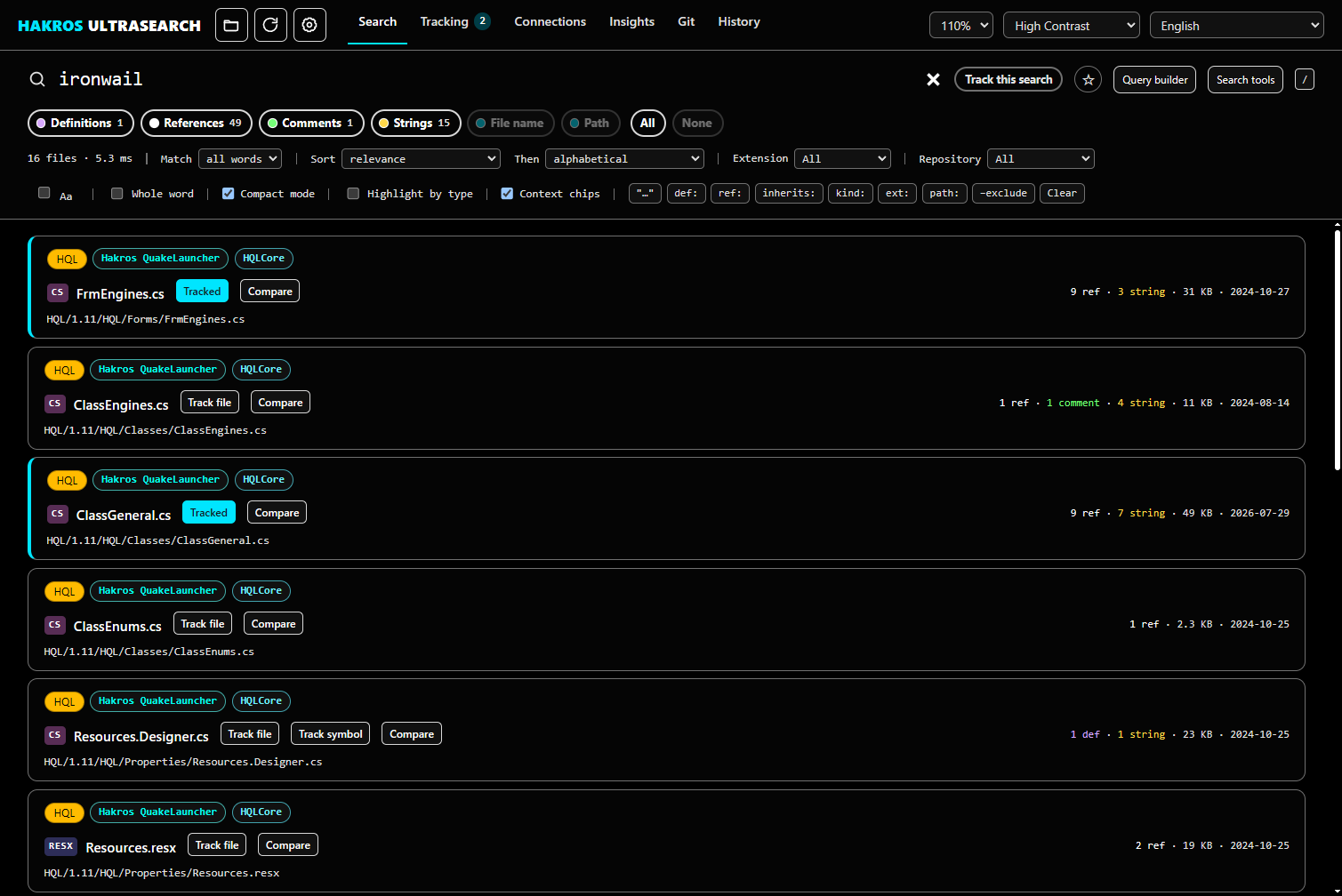
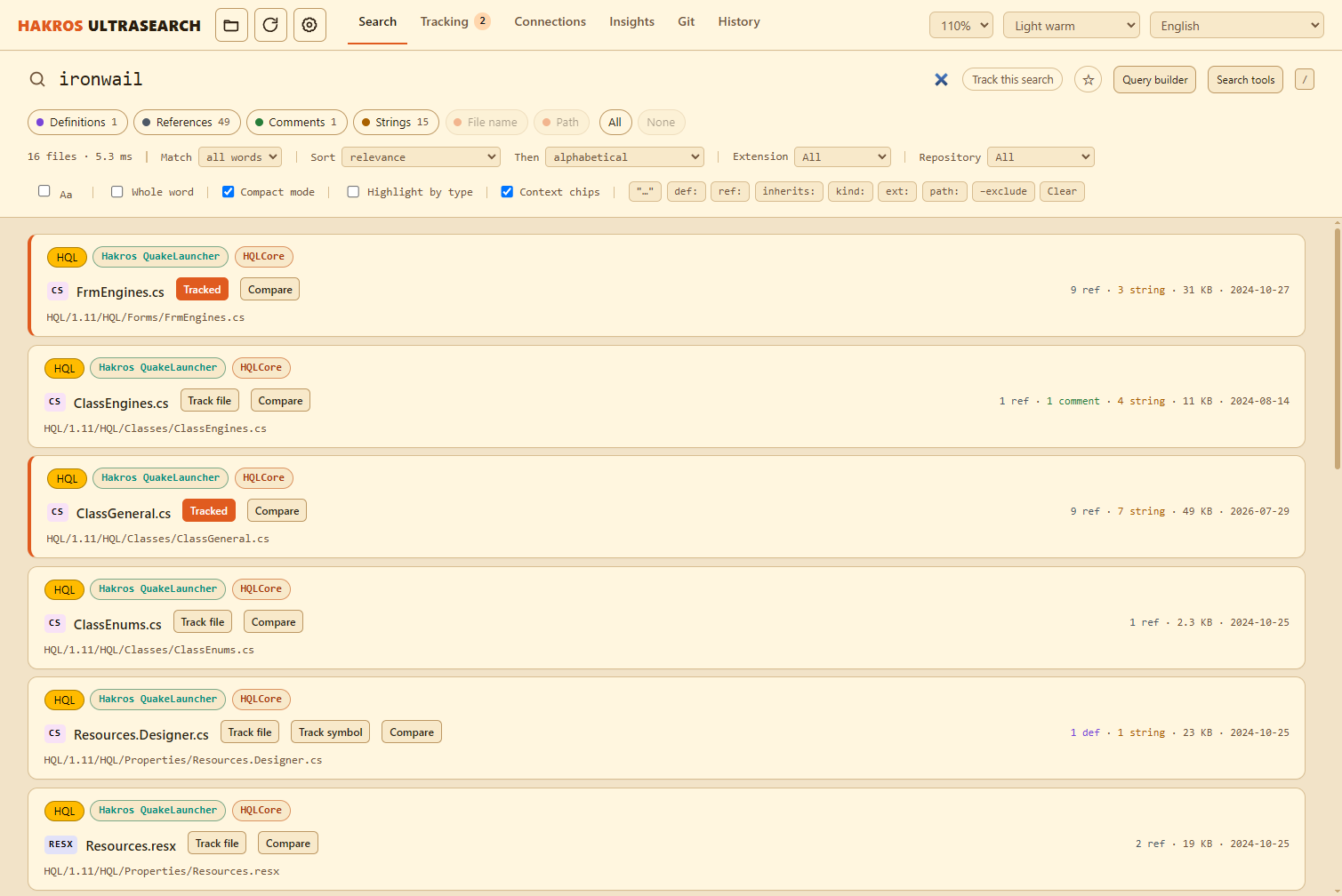
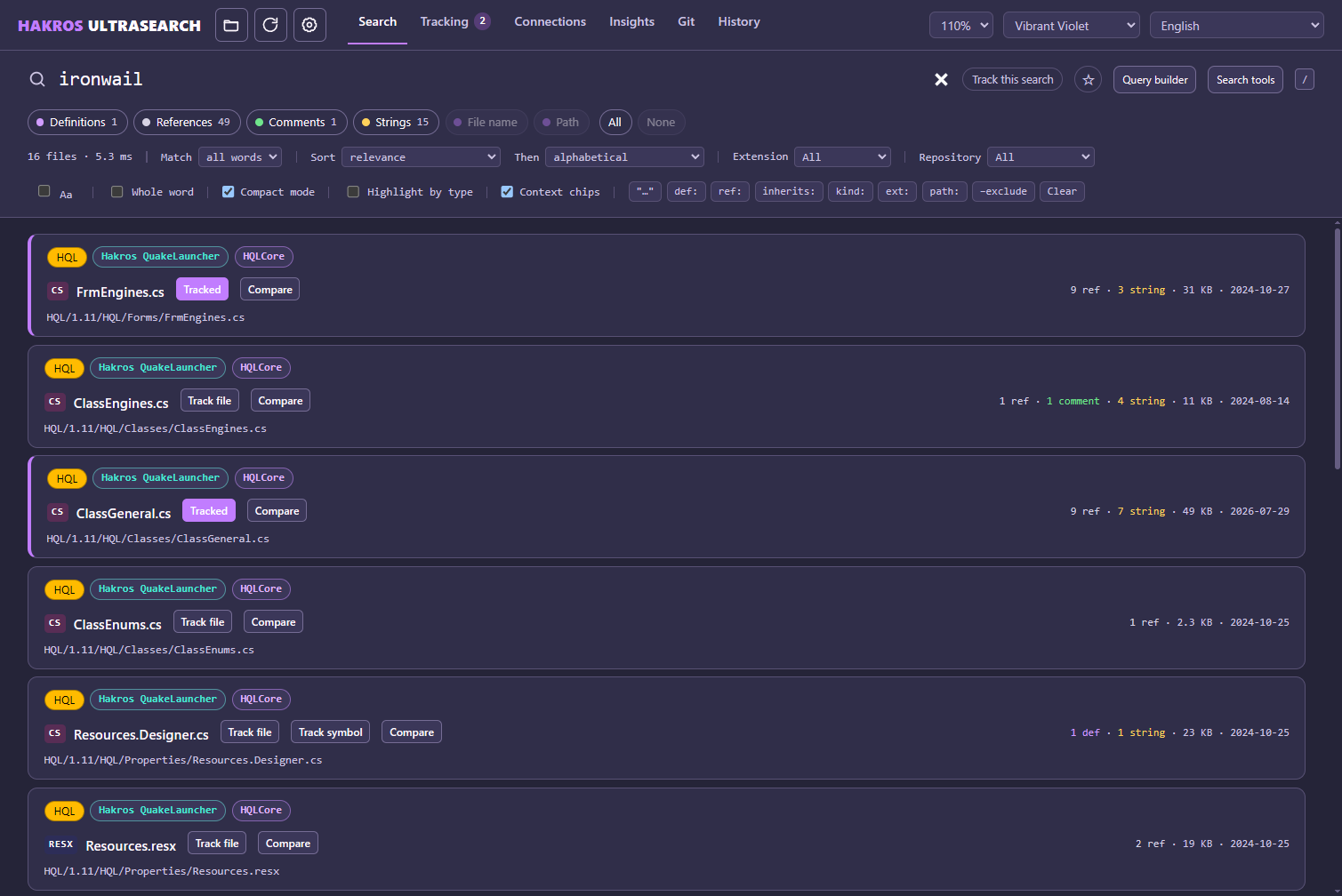
Themes
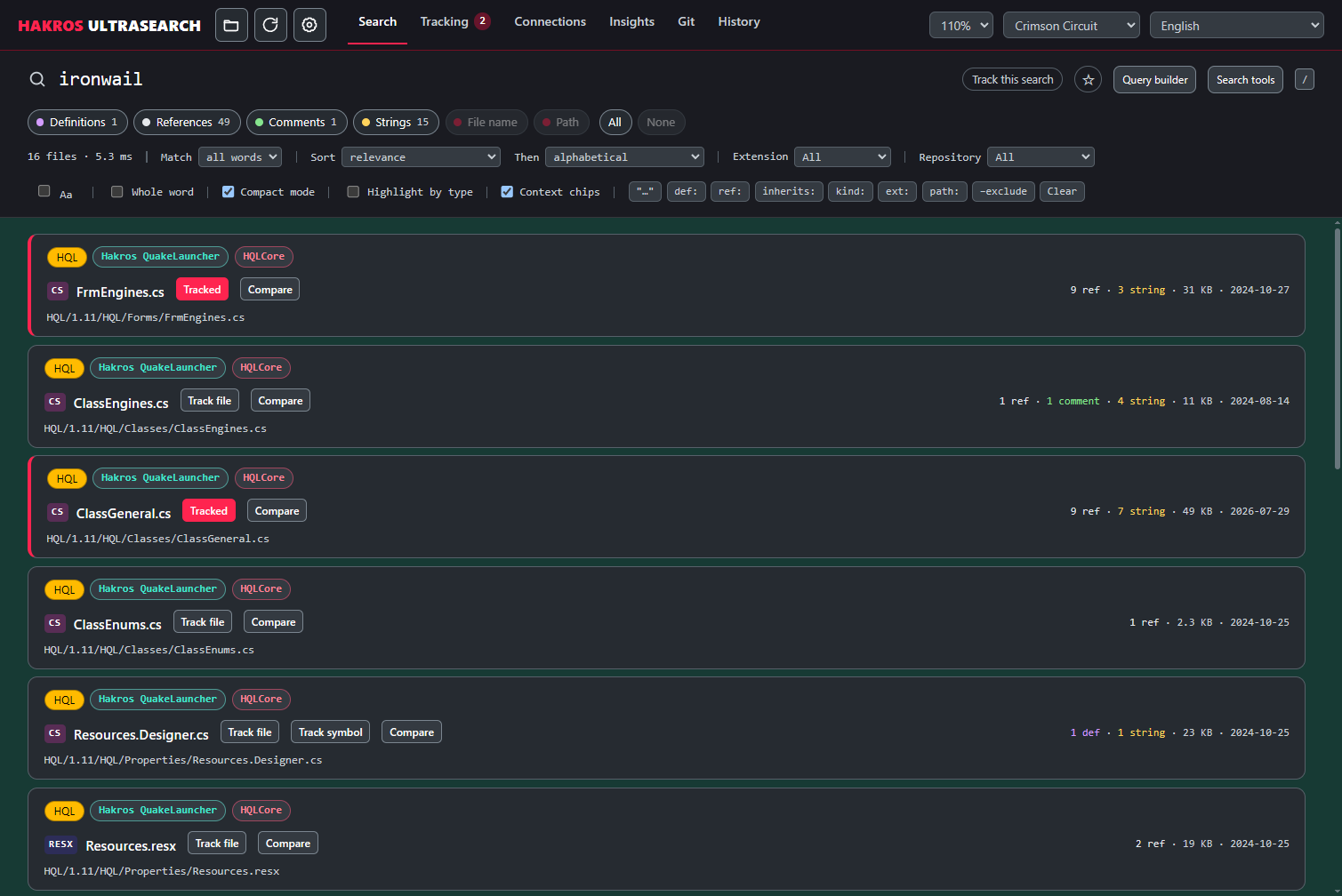
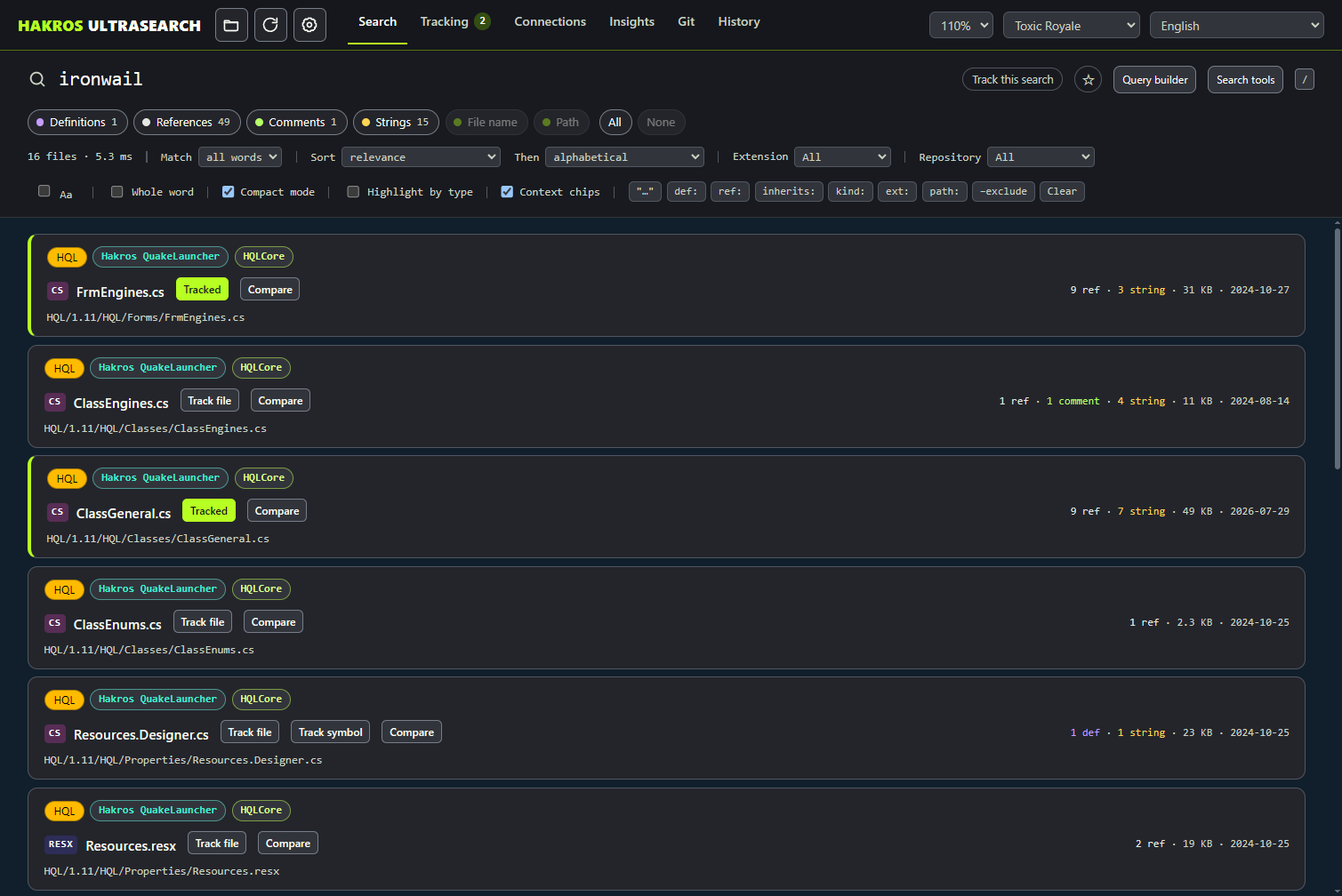
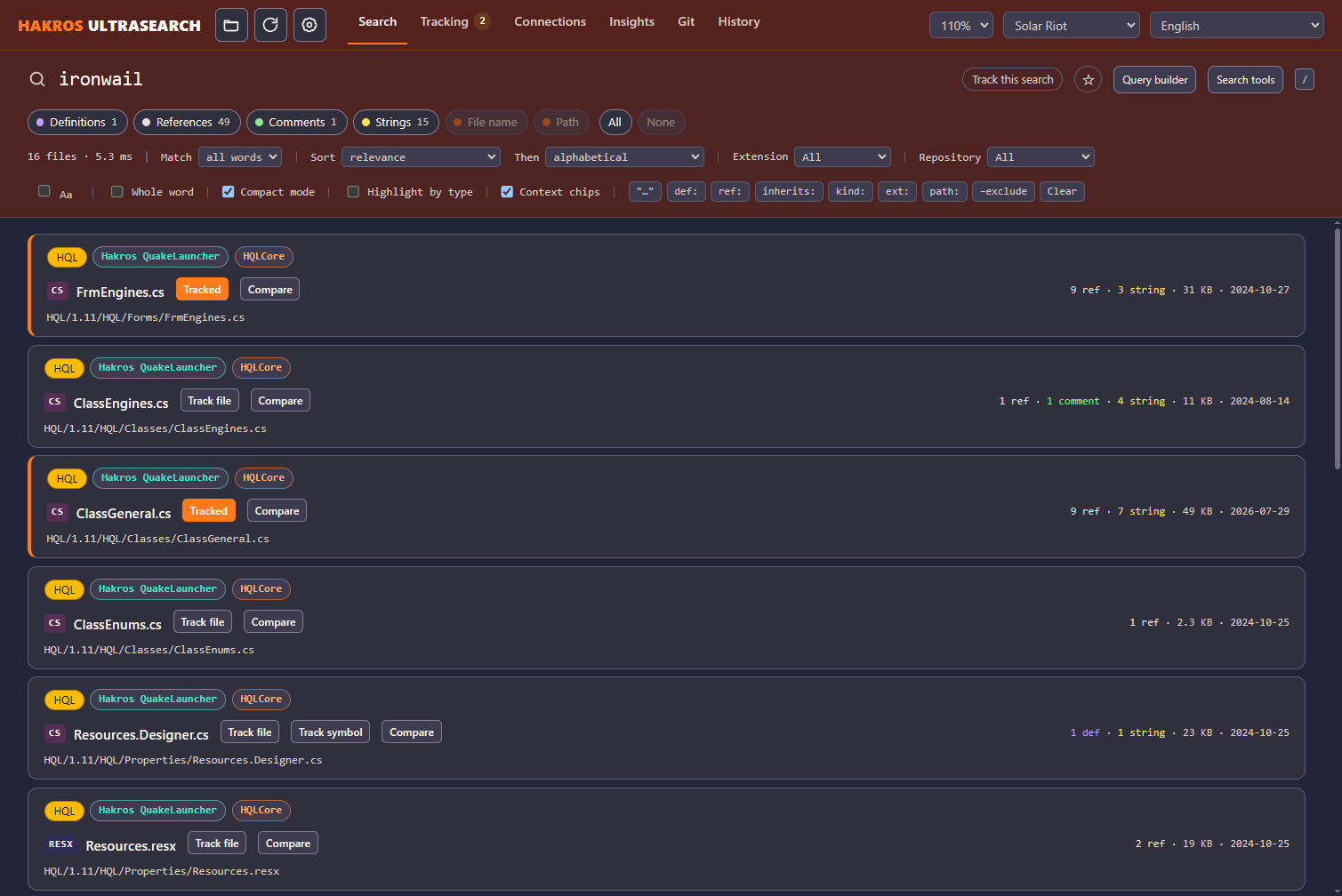
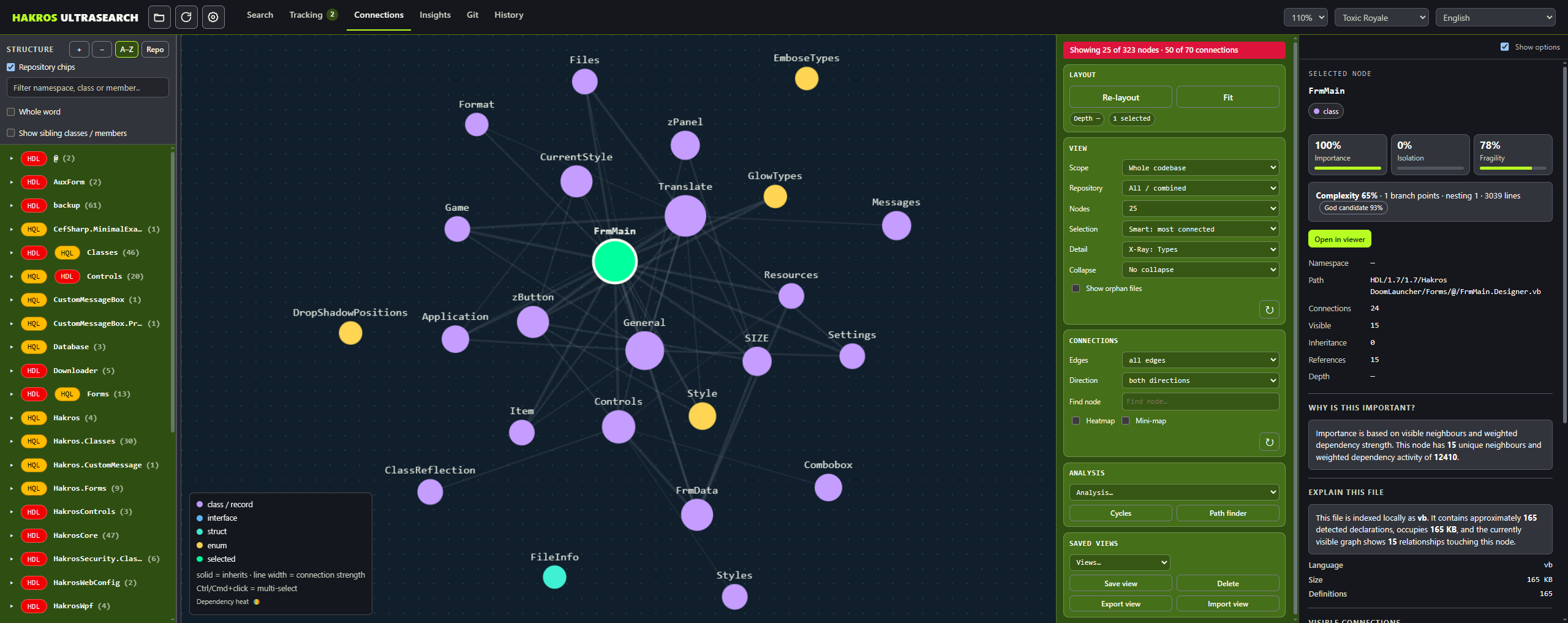
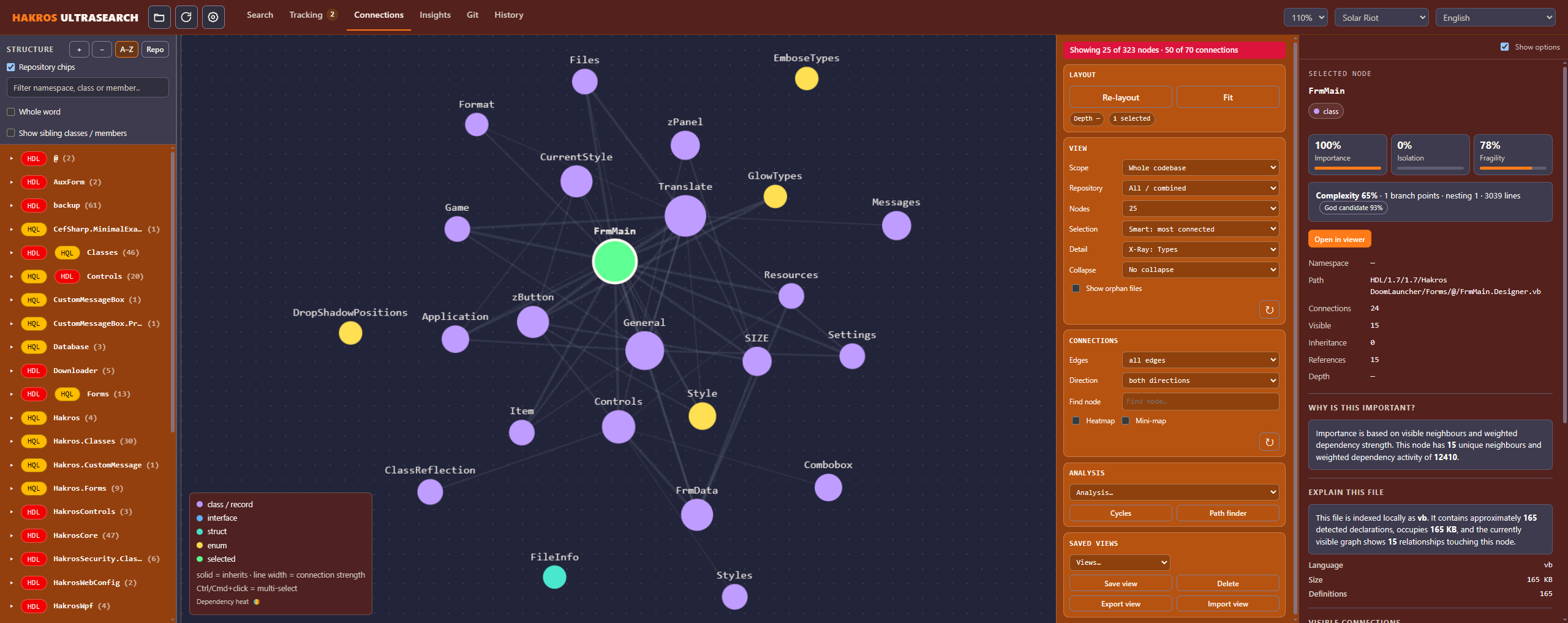
HAKROS ULTRASEARCH includes several visual theme categories, including dark, light, vibrant, colour and multicolour themes.
The selected theme affects the entire interface, including the Code Viewer, graph, dialogs and analysis indicators.
Languages
English is the default language.
Spanish is also fully available locally.
Additional languages can be selected from the language menu. Where available, reviewed translations are used first.
Zoom
The interface zoom can be changed from the top-right control.
The minimum available zoom is 80%.
The application loading screen always remains at normal 100% scale regardless of the selected interface zoom.
Options
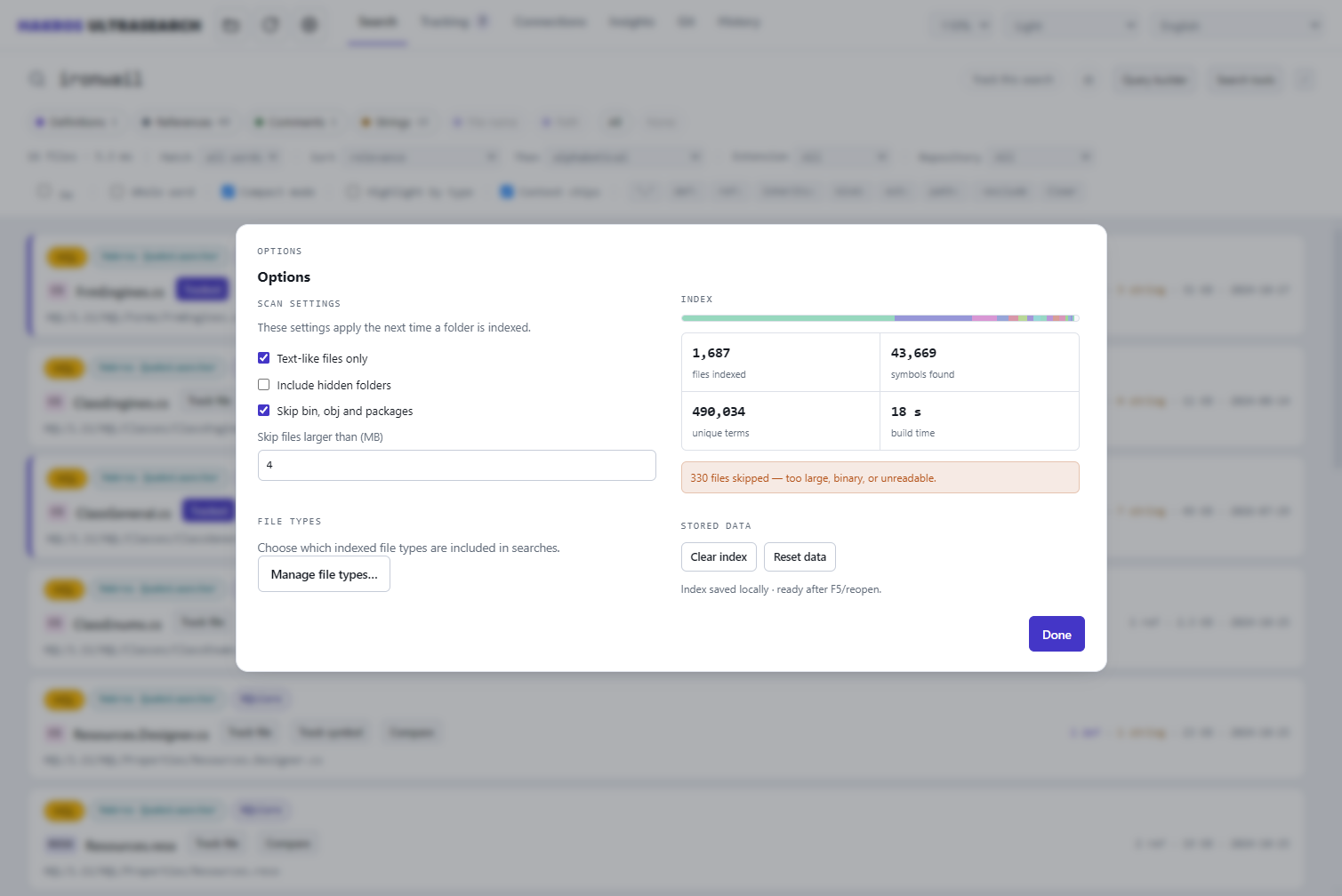
Open Options to configure indexing preferences, file types and stored project data.
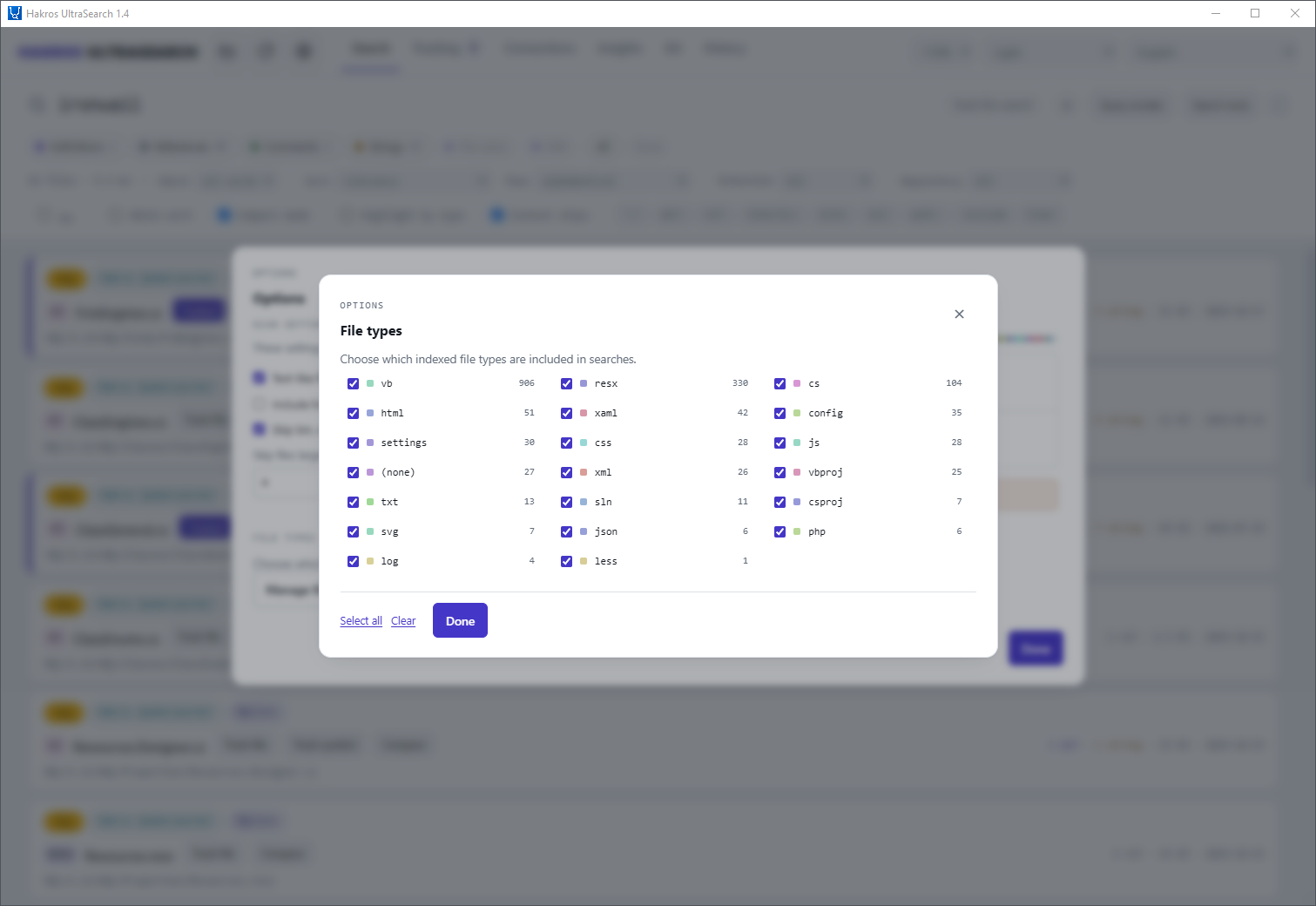
You can control which supported file types are included when a project is indexed.
Changes to indexing settings normally apply the next time the project is indexed.
Local and Private Operation
HAKROS ULTRASEARCH is designed to work locally.
There are two editions:
Portable Desktop Version
A downloadable portable version that can be used without a traditional installation.
Web Version
A browser-based version hosted on a server for convenient access.
Although the web interface is hosted online, project files are processed locally inside your browser. Your source files are not uploaded to the server as part of normal project analysis.
Recommended Workflow
For a new project:
- Choose the project folder.
- Allow the initial index to complete.
- Use Search to locate important classes or symbols.
- Open results in the Code Viewer.
- Use Connections to understand relationships.
- Use Insights to identify potential structural issues.
- Track important files or searches.
- Create a snapshot before major refactoring.
- Use History to return quickly to previous work.
Privacy
Project analysis is performed locally.
Your indexed source code and application data remain on your device unless you explicitly export or share information yourself.
Download
Install instructions

Development log
- Release 1.566 days ago
- Release 1.480 days ago
- Release 1.381 days ago
- Release 1.282 days ago
- Release 1.183 days ago
Leave a comment
Log in with itch.io to leave a comment.