
Hakros DRB
A downloadable tool for Windows
User guide
What this is
HAKROS Doom Resources Browser is a visual asset browser for Doom engine WAD and PK3 files. It exists for one specific moment: when you know roughly what a sprite or texture looks like but have no idea whether the lump is called ABE_B2, NTREC0 or CONB7074, and you don't want to launch a full editor just to find out and pull it.
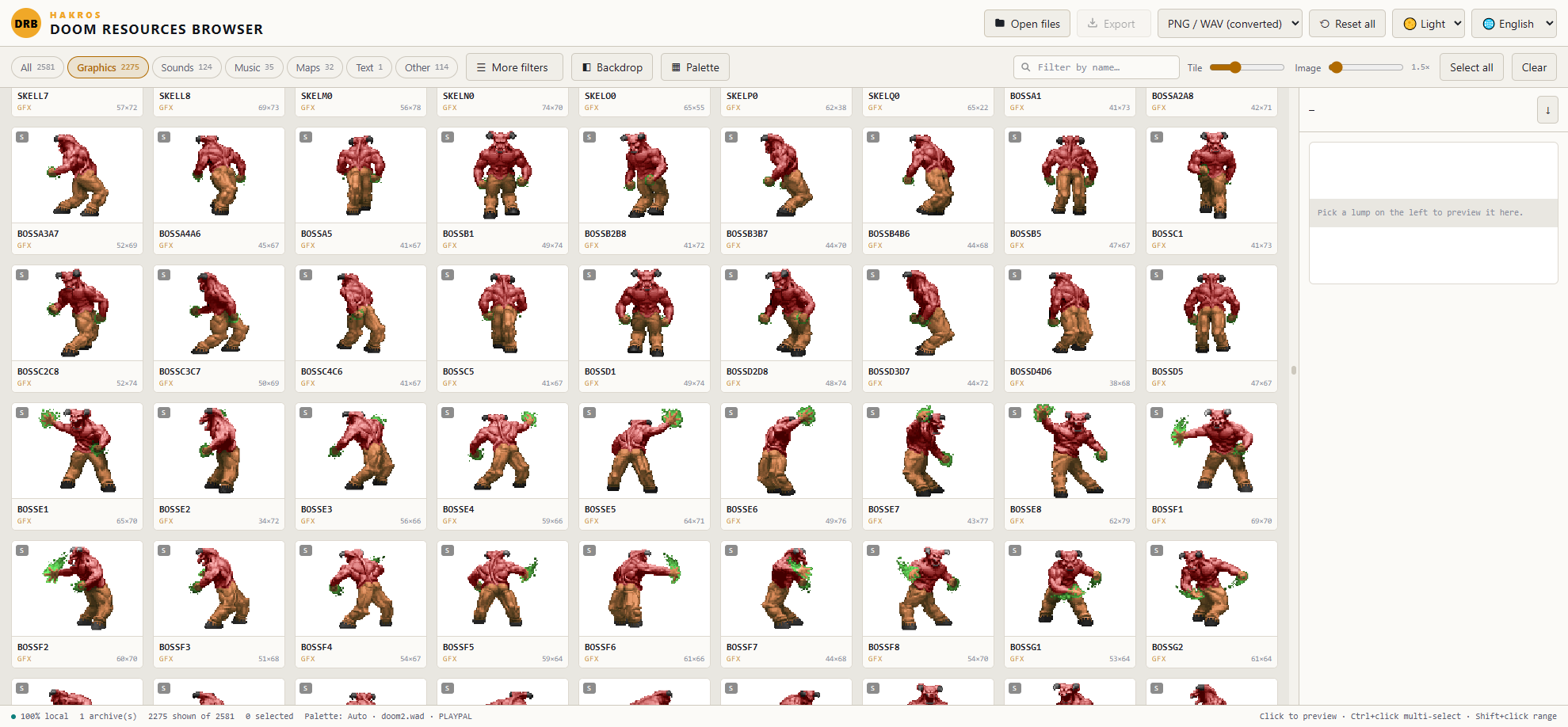
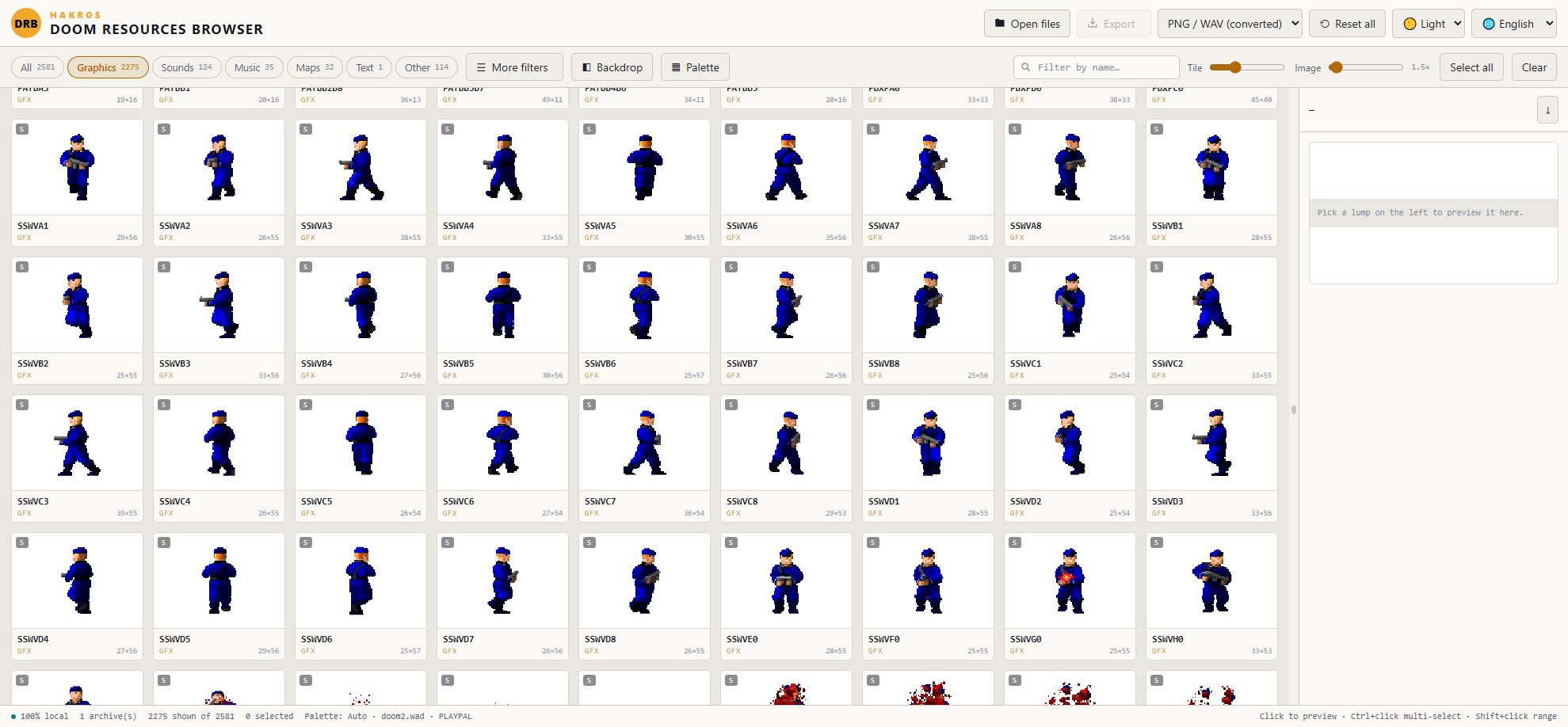
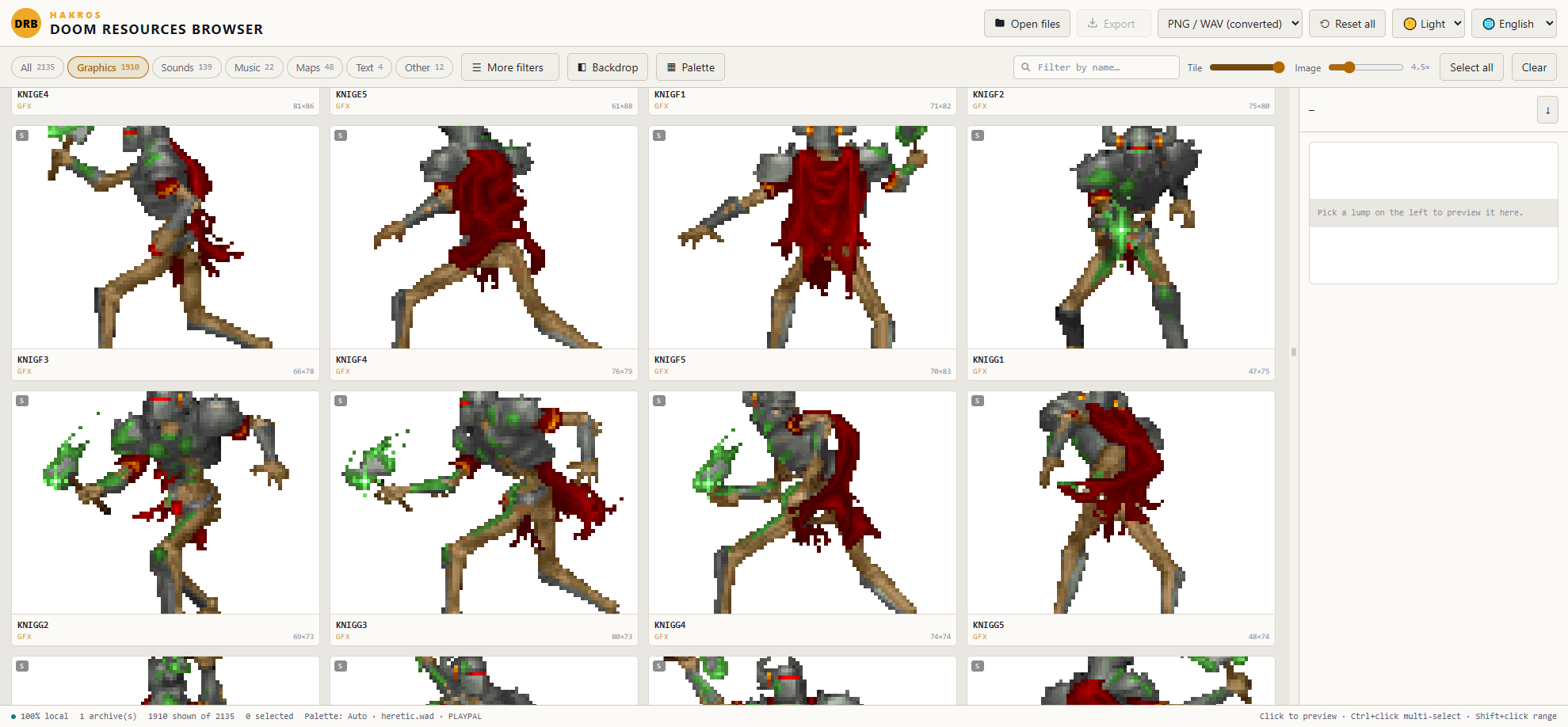
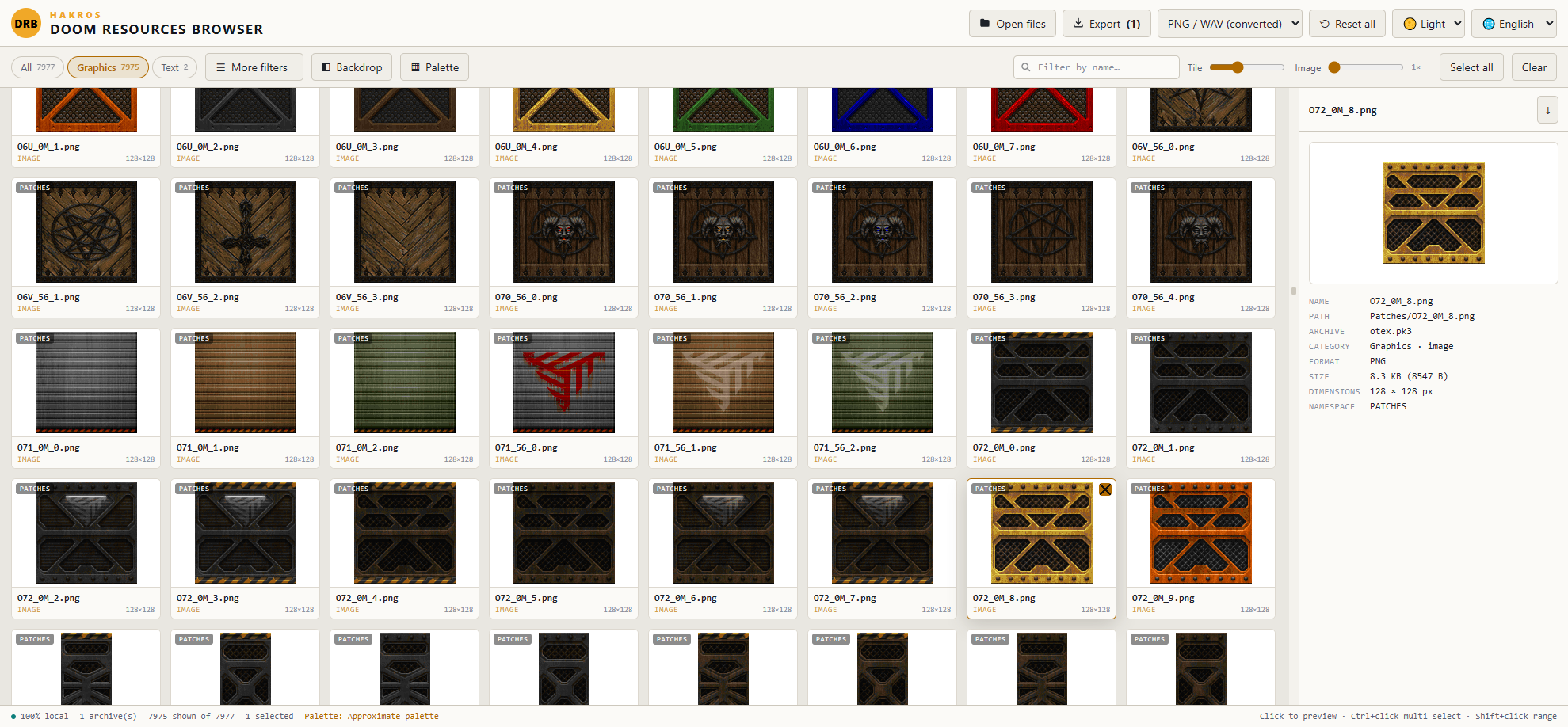
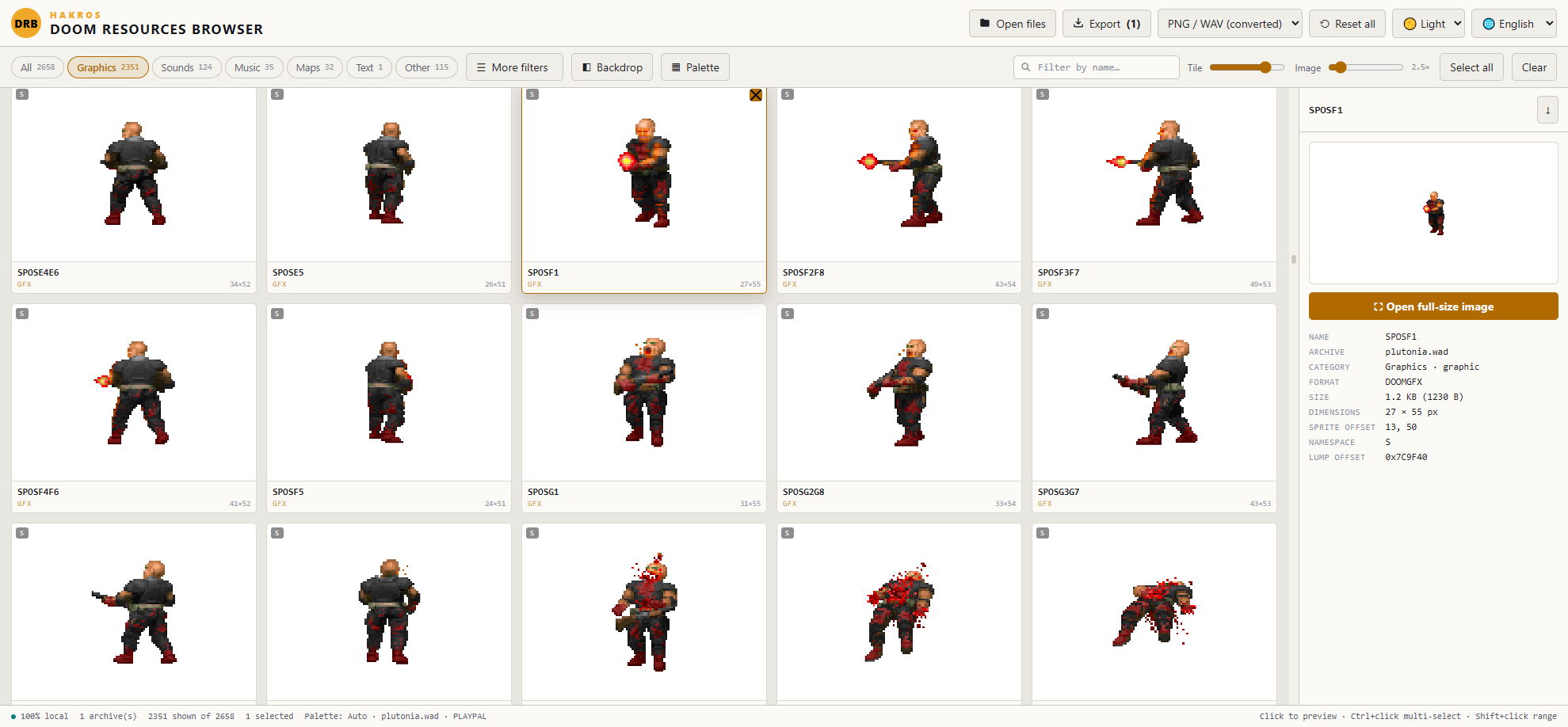
Instead of a tree of names, you get a thumbnail grid. Textures, flats, sprites, PNGs and even map layouts are rendered as pictures, so you find things by looking rather than by guessing. Select what you want, hit Export, and the app writes real .png and .wav files to your disk, decoding the vanilla Doom formats on the way out.
The whole thing is a single HTML file with no libraries and no server. Every byte of your archives is parsed in your browser's memory: nothing is uploaded, nothing is sent anywhere, and it works with your network cable unplugged. You can double-click the file to run it locally, or drop it on GitHub Pages and it will work the same.
Getting started
- Open the HTML file in any modern browser (Chrome, Edge, Firefox or Safari).
- Drag a
.wador.pk3onto the window, or click Open files. - Wait a moment while the directory is read, then browse the grid.
Supported inputs: .wad (IWAD and PWAD), .pk3, .ipk3, .pk7, .zip, and WADs nested inside a PK3, which are expanded automatically. You can open several archives at once; they all merge into one grid, and each tile shows which archive it came from.
Loading is fast even on very large files because the app only reads the directory up front. Compressed PK3 entries are unpacked individually, at the moment a thumbnail, preview or export actually needs them.
The interface
Header. The logo, then Open files, Export with its format selector, Reset all, and the theme and language pickers. The interface ships in English and Spanish and switches instantly.
Filter bar. Category chips with live counts (All, Graphics, Sounds, Music, Maps, Text, Other), the More filters panel, the Backdrop and Palette menus, a name search box, two sliders, and the selection buttons.
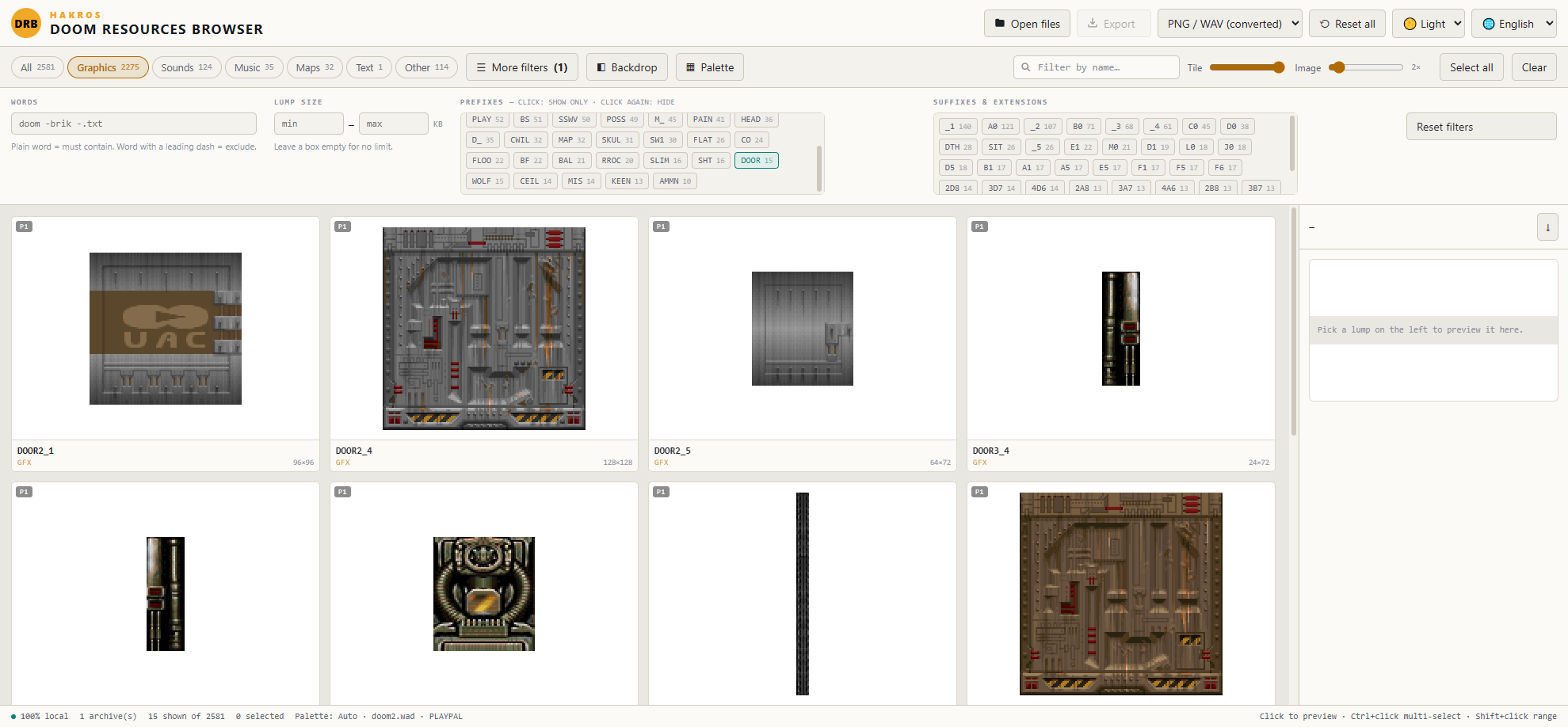
Grid. The thumbnail mosaic. Only the tiles you can actually see exist in the page, so an archive with thousands of lumps scrolls smoothly. Each tile shows the name, the detected type, the pixel dimensions once decoded, and a badge with the namespace (SS, TX, PK3, UDMF…).
Preview panel. Always open on the right. It shows the selected item full size along with its metadata.
Status bar. Archive count, how many items are showing out of the total, how many are selected, and which palette is currently applied.
Finding things
Categories. Click a chip to show only graphics, sounds, music, maps, text or everything else. The counts tell you what the archive actually contains before you click.
Search. Type in the search box to match names and paths as you type.
More filters opens a panel with four extra tools:
- Words. A plain word means the item must contain it; a word with a leading dash excludes. They combine, so
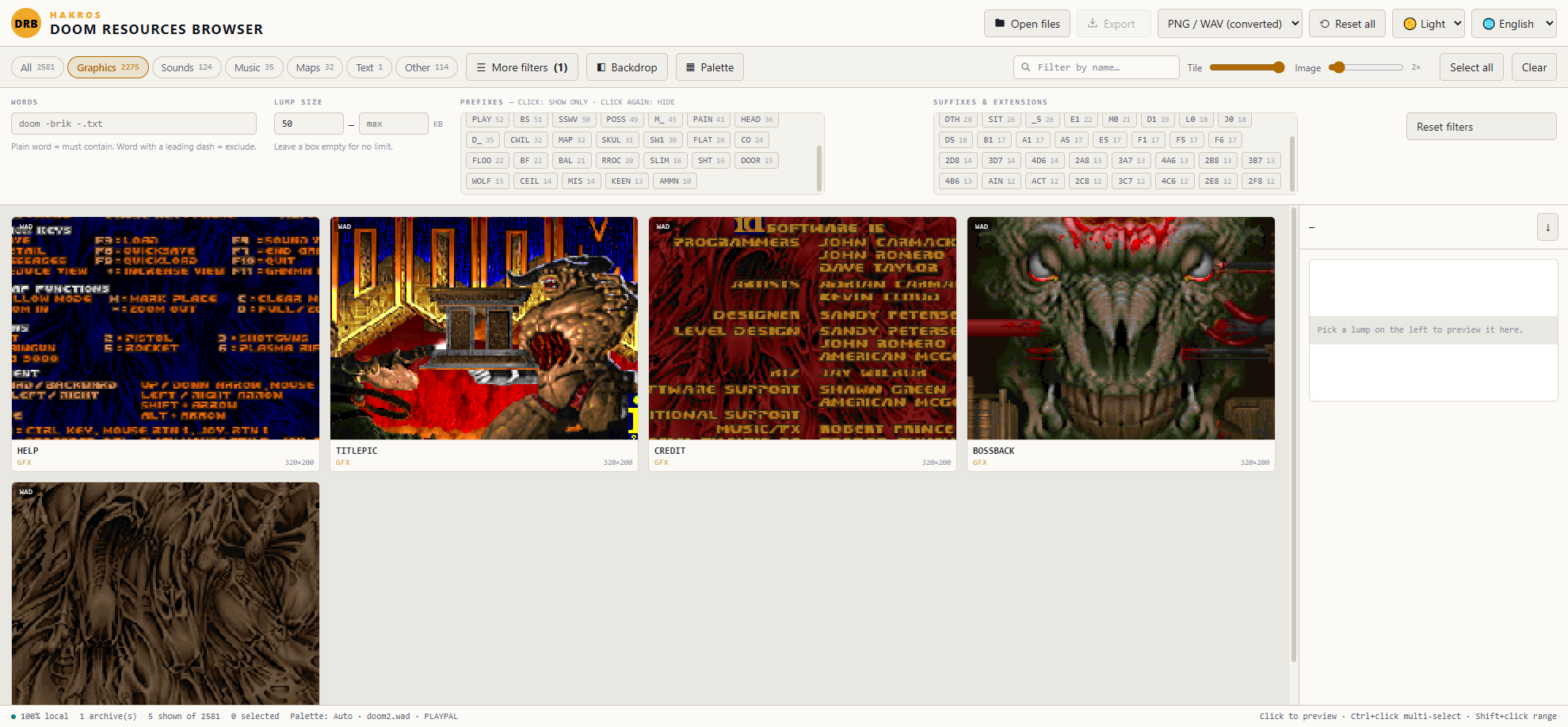
imp -death -.txtshows anything with "imp" in the path while dropping anything with "death" or any.txt. Because it matches the full path,-sounds/drops a whole folder. - Lump size. Minimum and maximum in KB. Leave either box empty for no limit. Useful for finding the handful of oversized lumps bloating a mod, or for hiding 1-pixel placeholders.
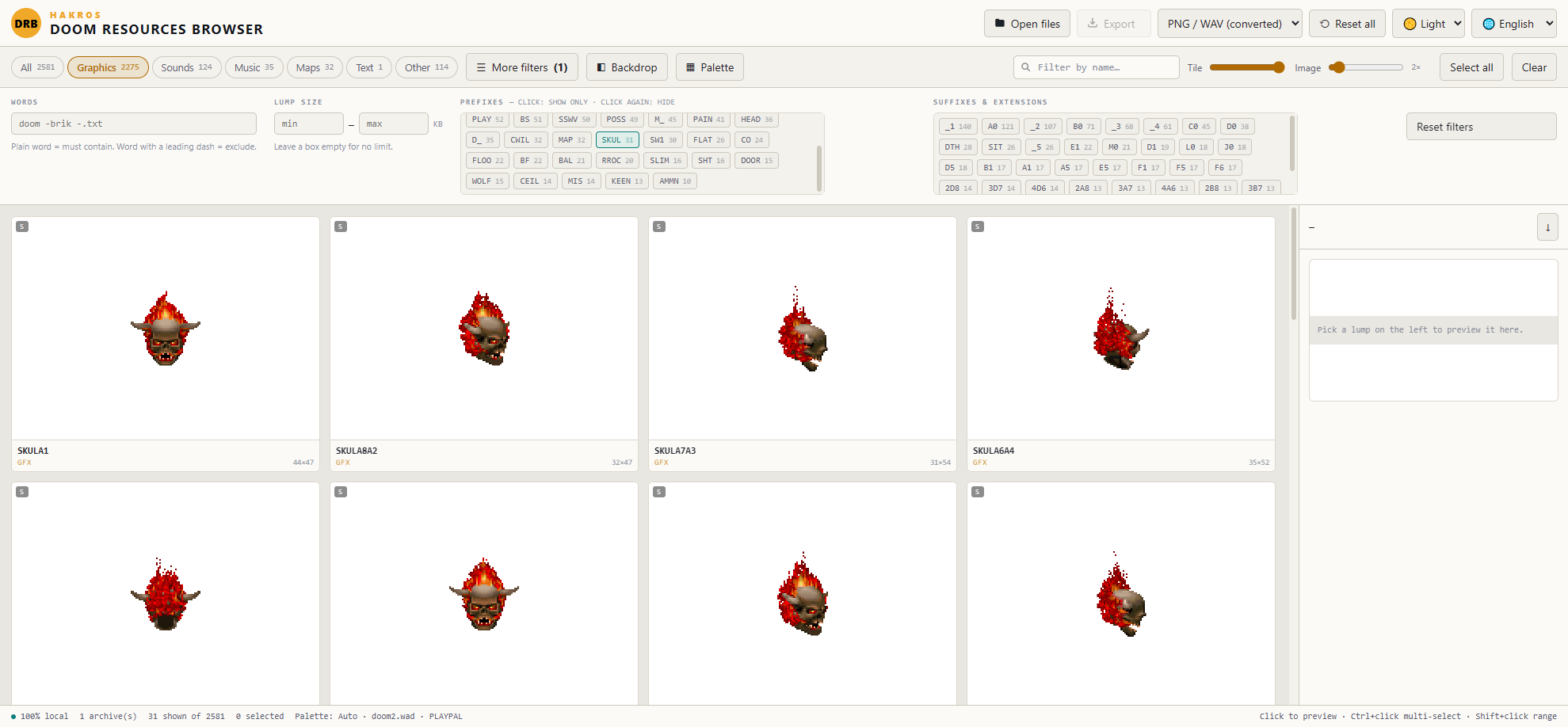
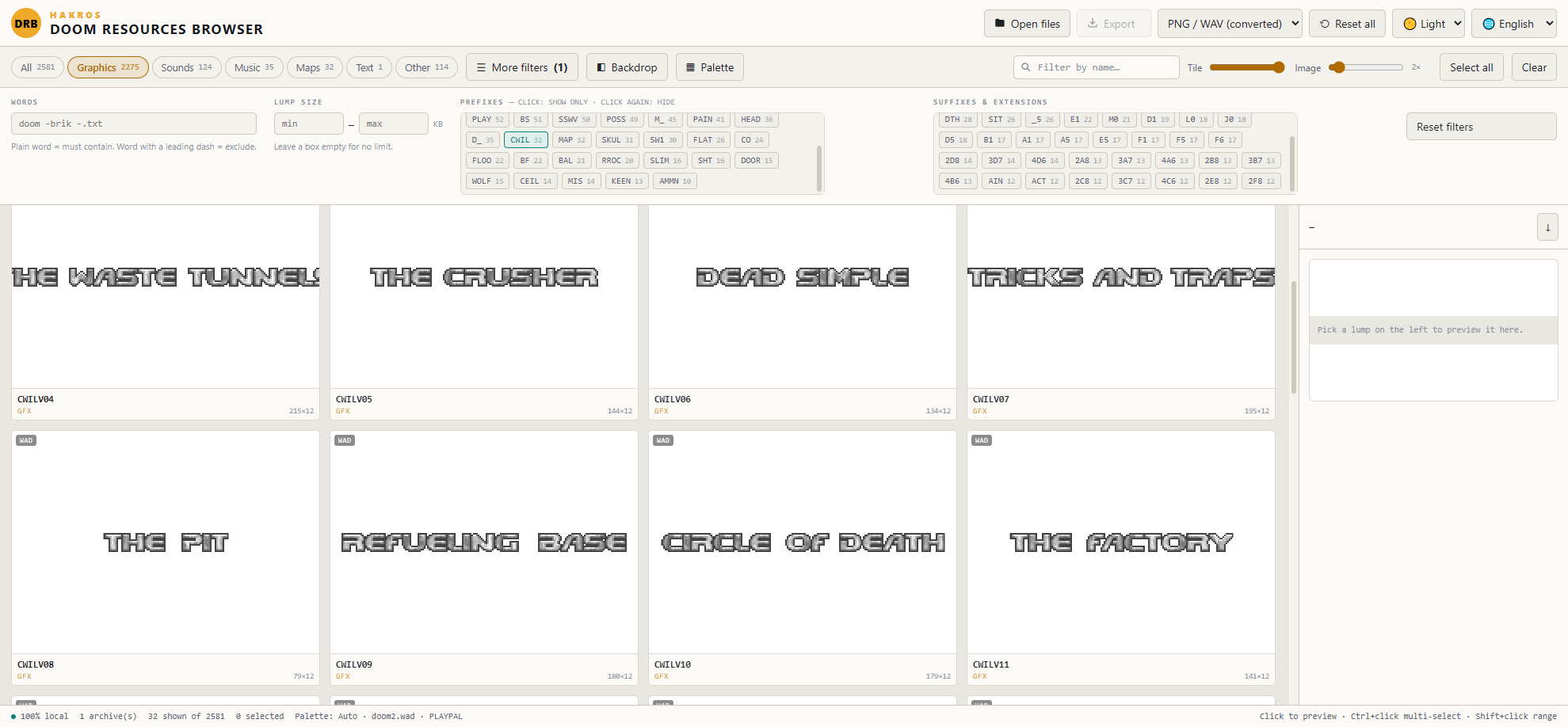
- Prefixes and Suffixes. The app reads the names in your archive, counts the recurring beginnings and endings, and lists the significant ones with their frequency — things like
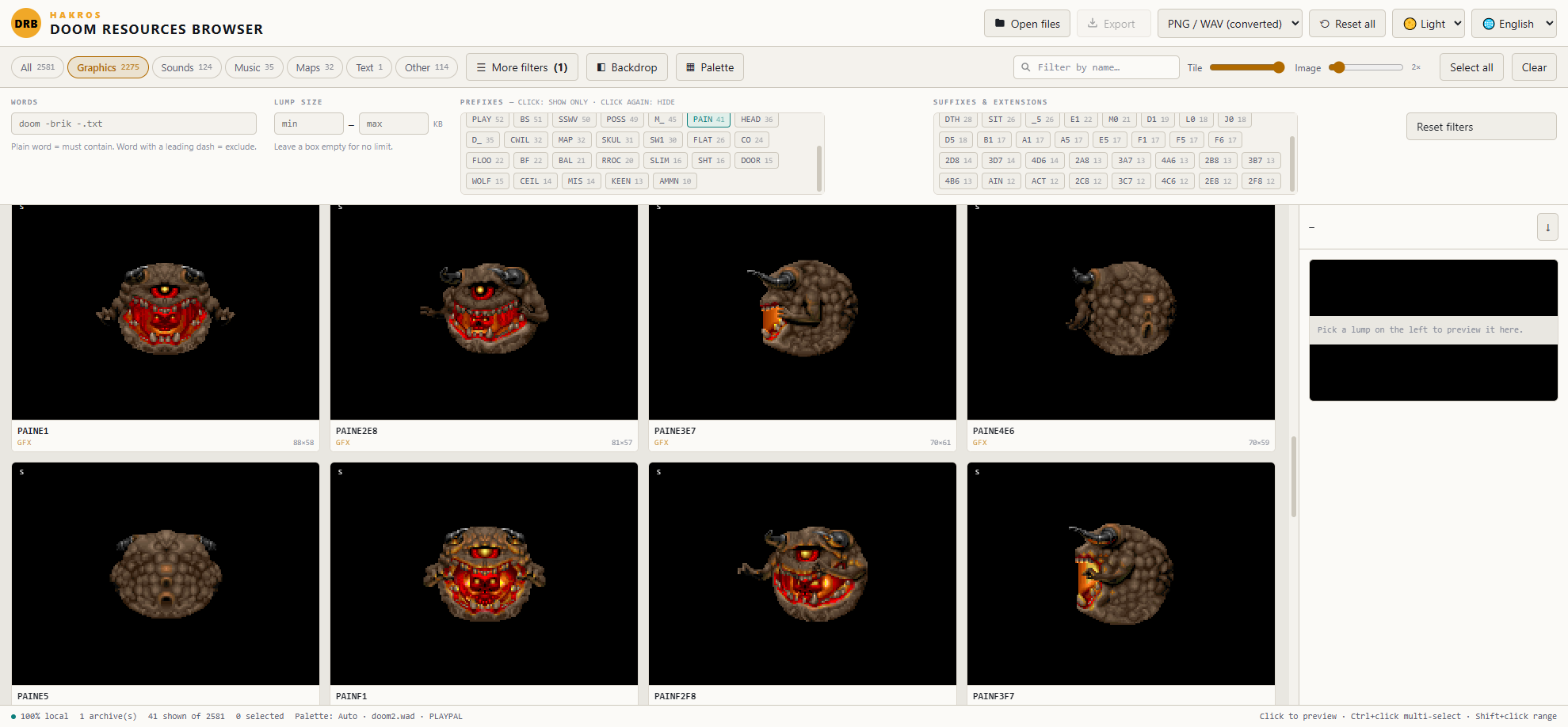
POSS 64,TROO 32,DS 108,D_ 24,.PNG 340. Click a chip once to show only that group, click again to hide it, click a third time to clear it. This is the fastest way to isolate one monster's sprite set or to get every sound out of the way.
Filters stack with each other and with the category chips. Reset filters clears the panel in one click; the counter on the More filters button tells you how many filter groups are active.
Making thumbnails readable
Tile slider: the size of the grid cells, from compact to large.
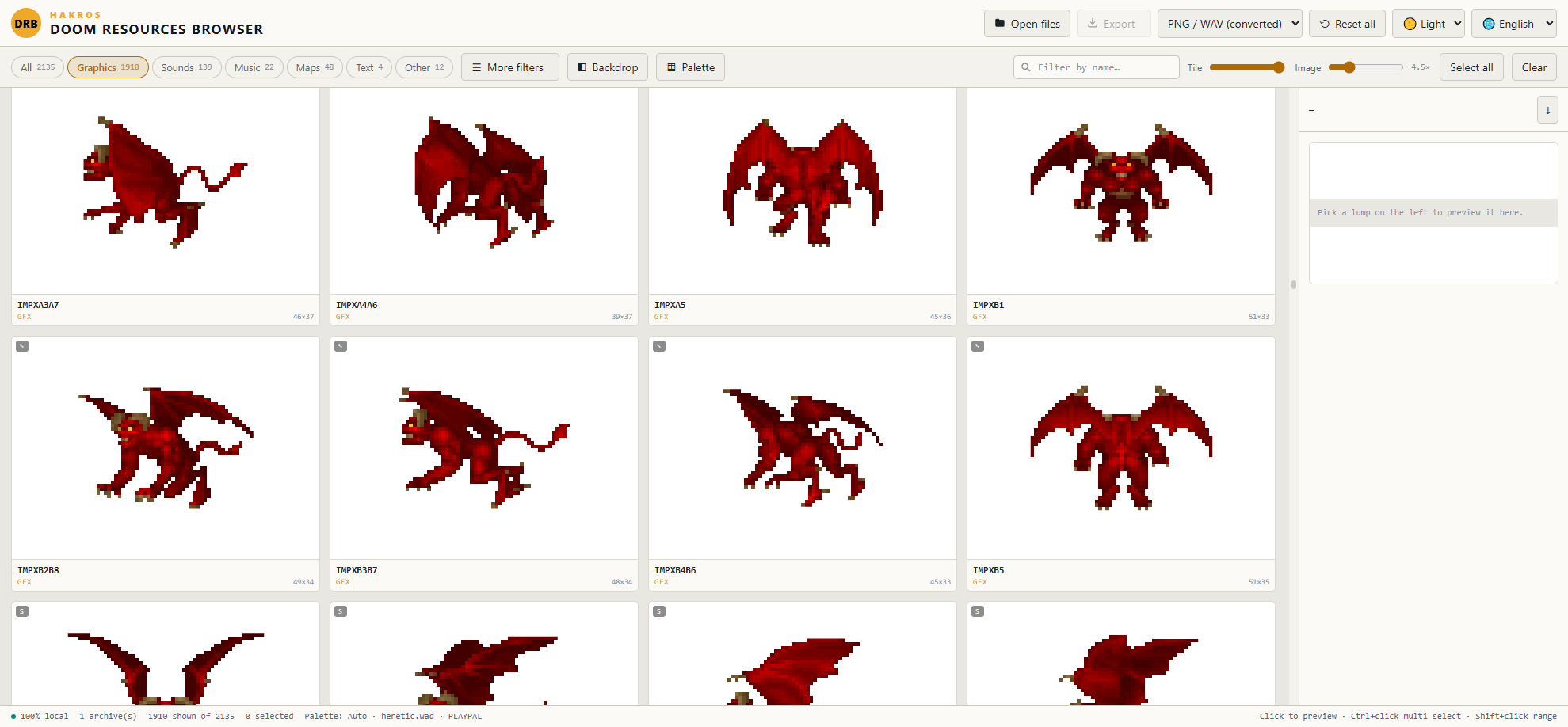
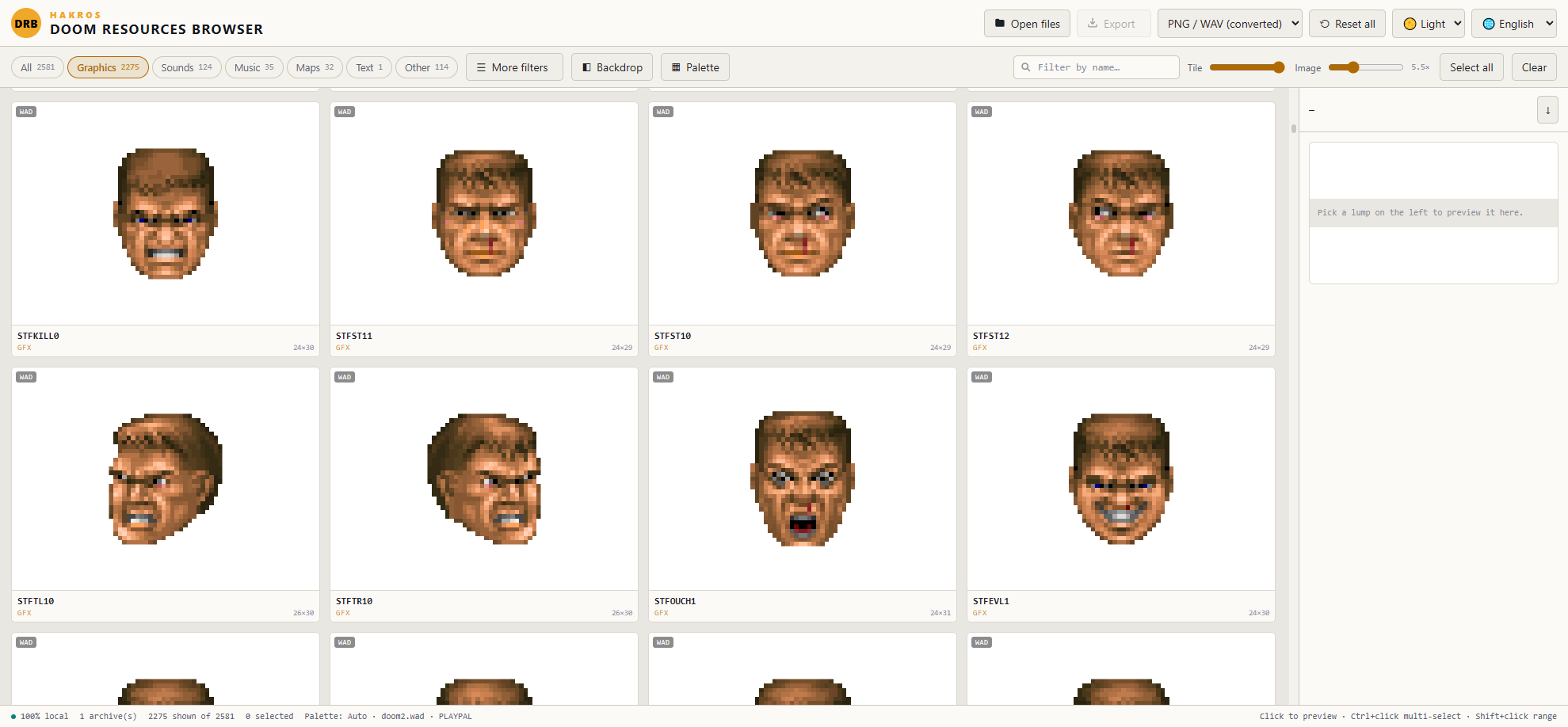
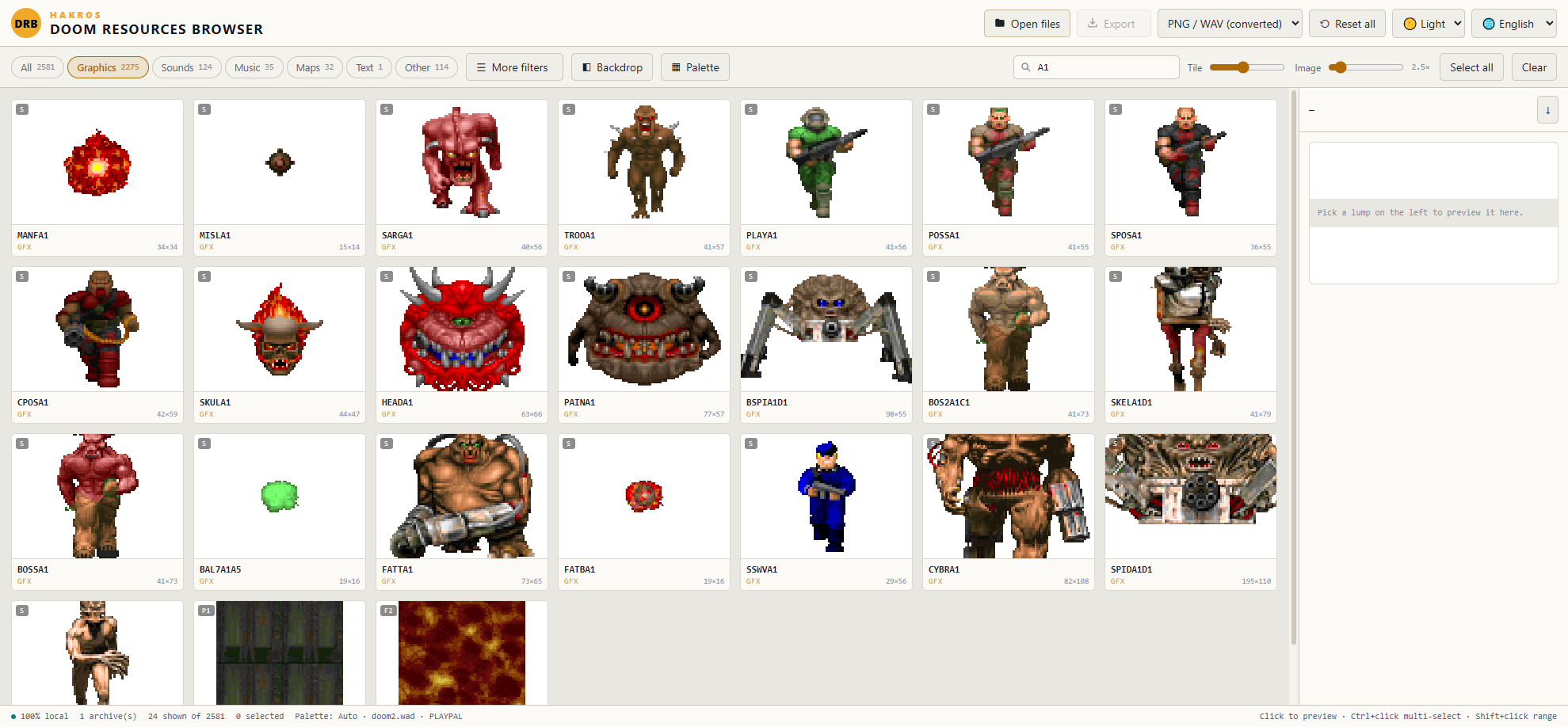
Image slider: how much the picture inside the cell is magnified. At 1× every graphic is drawn at its true pixel size (shrunk only if it doesn't fit), which is the honest view. Push it up to 16× for tiny assets like status bar digits, which are 4×6 pixels and otherwise invisible. Scaling is nearest-neighbour, so pixels stay sharp instead of turning to mush.
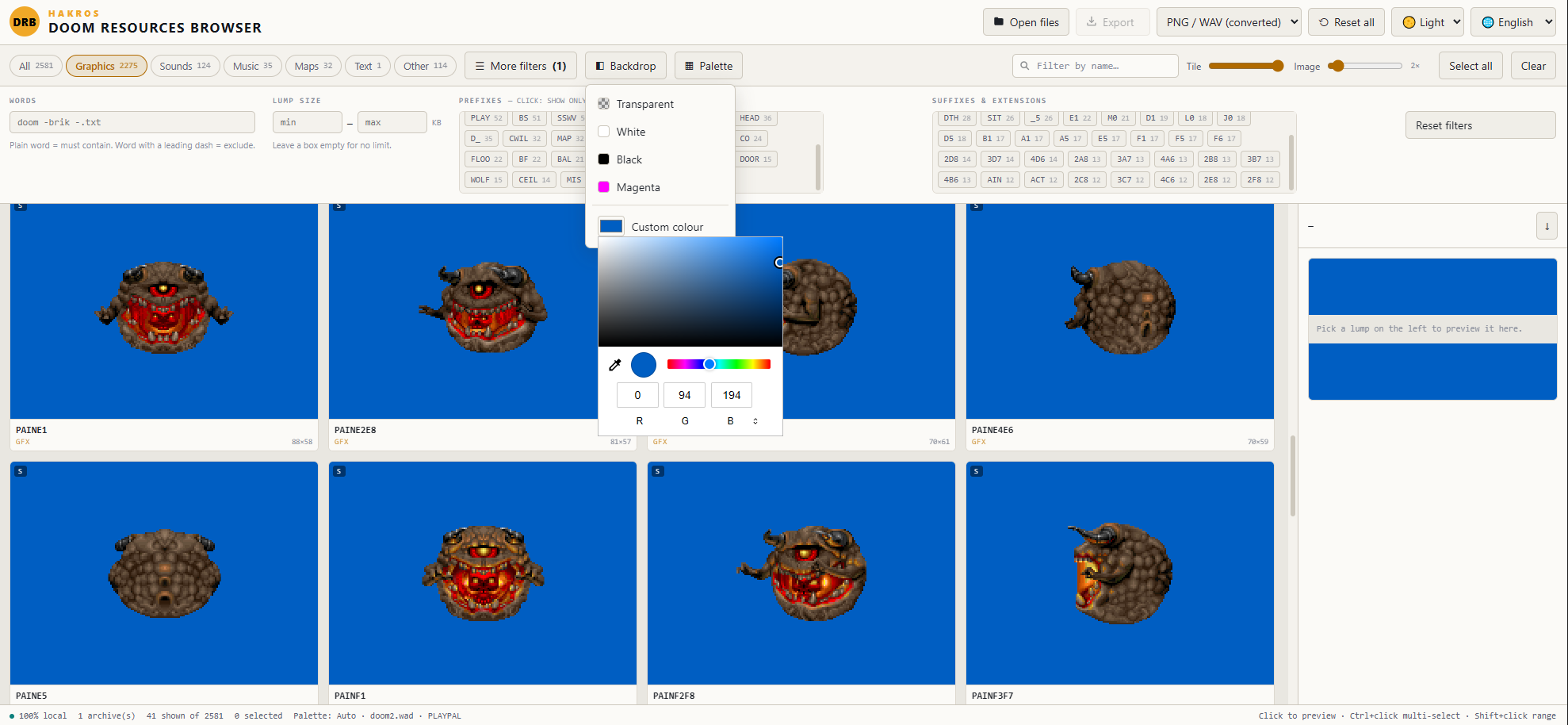
Backdrop menu: what sits behind transparent areas — a checkerboard, white, black, magenta, or any colour you pick. Sprites with dark outlines vanish on black and read perfectly on white; the classic magenta is there for checking stray edge pixels.
Palettes: why some graphics look wrong
Graphics in the classic Doom format don't store colours. They store an index from 0 to 255 per pixel, and a PLAYPAL lump maps those indices to actual RGB values. PNG and JPG files carry their own colours and always look correct; anything labelled GFX in the grid depends on a palette being available.
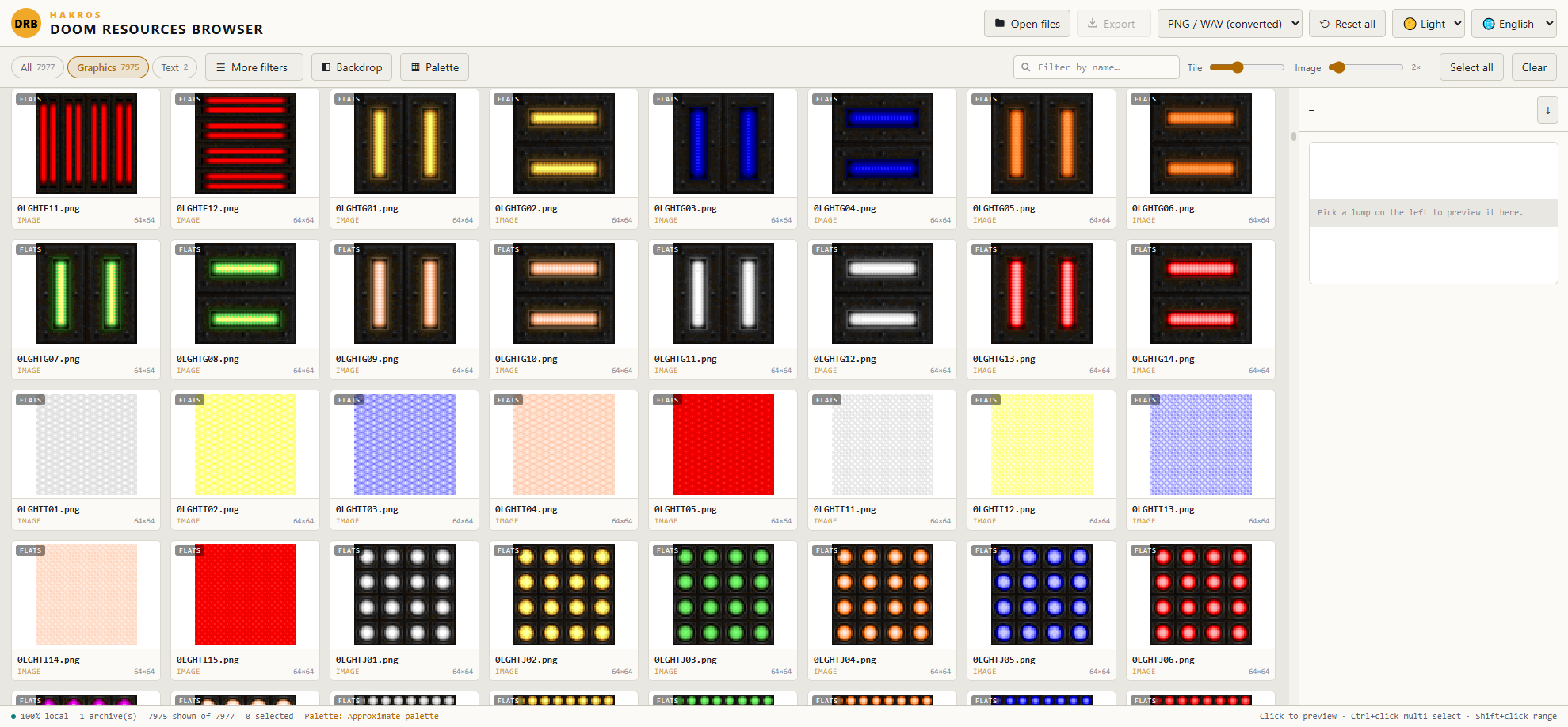
If an archive has no PLAYPAL — very common for texture packs and sprite packs meant to run on top of an IWAD — the app falls back to an approximation, and colours will be off. The status bar warns you in amber when that happens.
The fix: open the IWAD the mod runs on (doom2.wad, doom.wad, heretic.wad…) alongside the PK3, using "Add to current" in the dialog. Every Doom-format graphic then decodes with the exact colours.
The Palette menu gives you full control:
- Auto — use the
PLAYPALfrom the item's own archive, falling back to any other loaded one. - A specific palette — every detected
PLAYPALis listed, so you can force which one applies. - Page — a
PLAYPALholds 14 pages: the normal one plus the damage reds, the item-pickup gold and the radiation-suit green. Preview with any of them. - Load palette from a file — point it at a WAD or PK3 and it extracts only the
PLAYPAL, without adding that archive's lumps to your grid. It also accepts a barePLAYPALlump, Photoshop.act, JASC.paland GIMP.gpl. You can drag.pal,.actand.gplfiles straight onto the window. - Built-in approximation — the fallback, if you ever want it deliberately.
Changing the palette regenerates every thumbnail and the preview, and exported PNGs use the palette you're currently viewing.
The preview panel
Click any tile to load it on the right. What you get depends on the type:
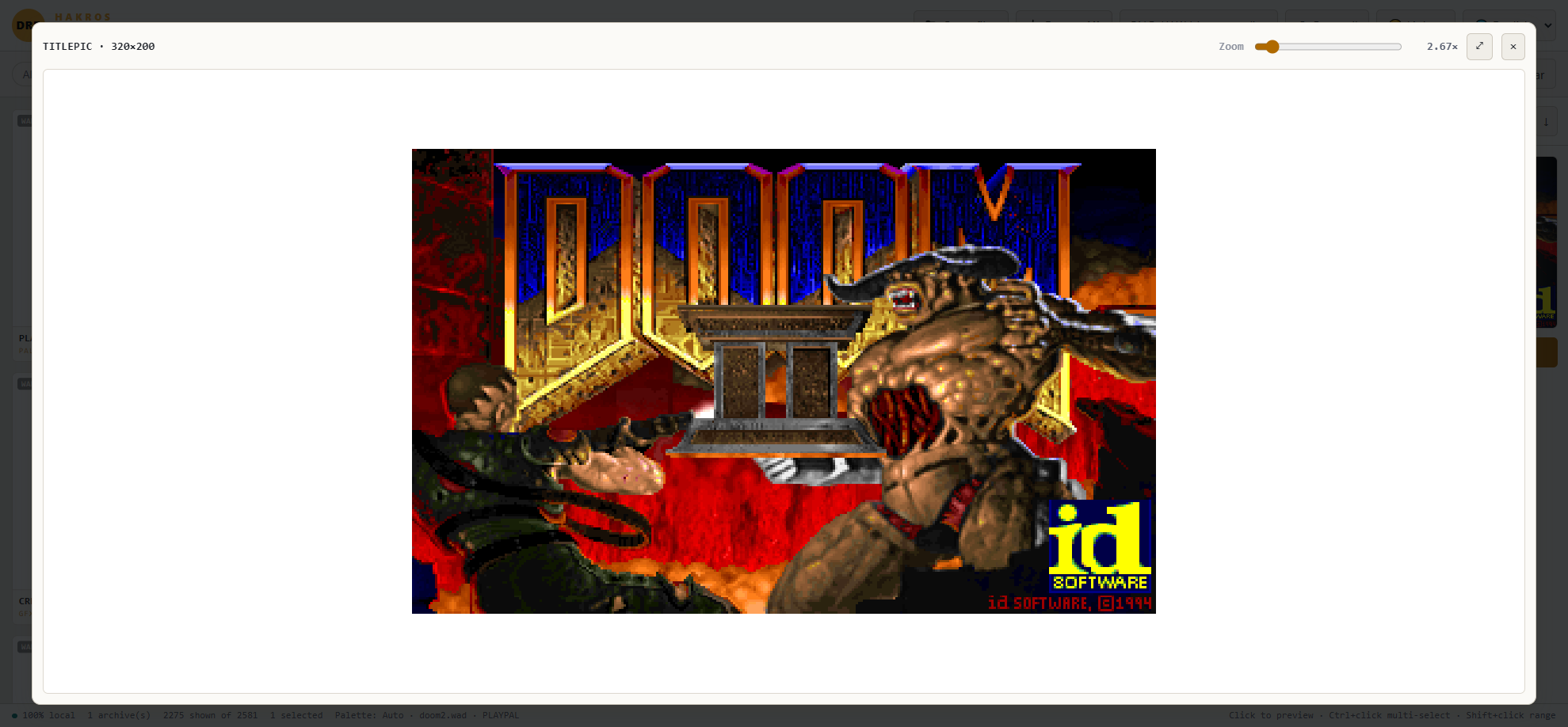
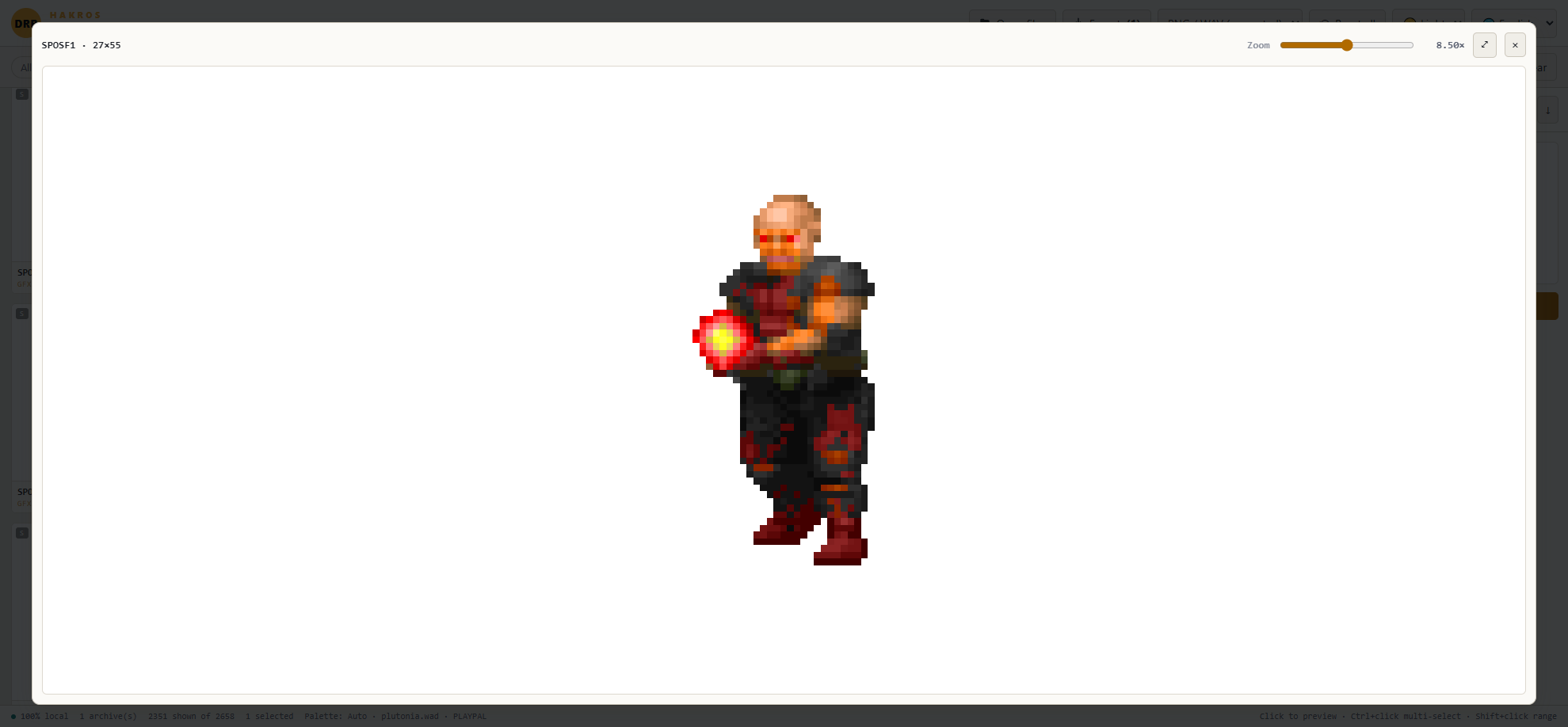
- Graphics, flats, PNG/JPG — the image at full size, with dimensions and, for sprites, the offset values that decide where the graphic is anchored in game.
- Sounds — a player. DMX lumps are converted to WAV on the fly, so vanilla sound effects play in the browser. Sample rate and duration are listed.
- Music — OGG and MP3 play; MIDI, MUS and tracker formats can't be played by a browser, so export them instead.
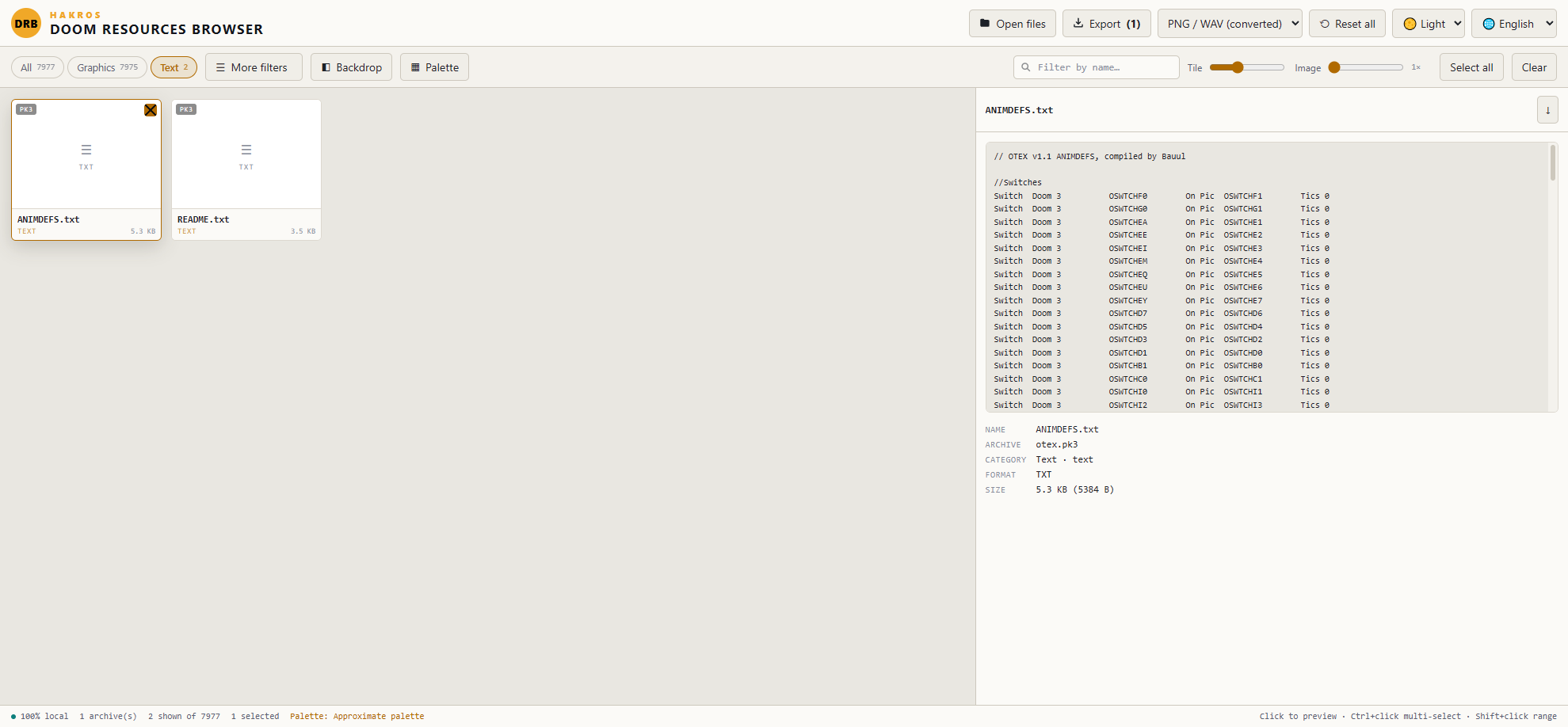
- Text — a viewer for DECORATE, ZScript, MAPINFO, TEXTMAP, SNDINFO and any other text lump.
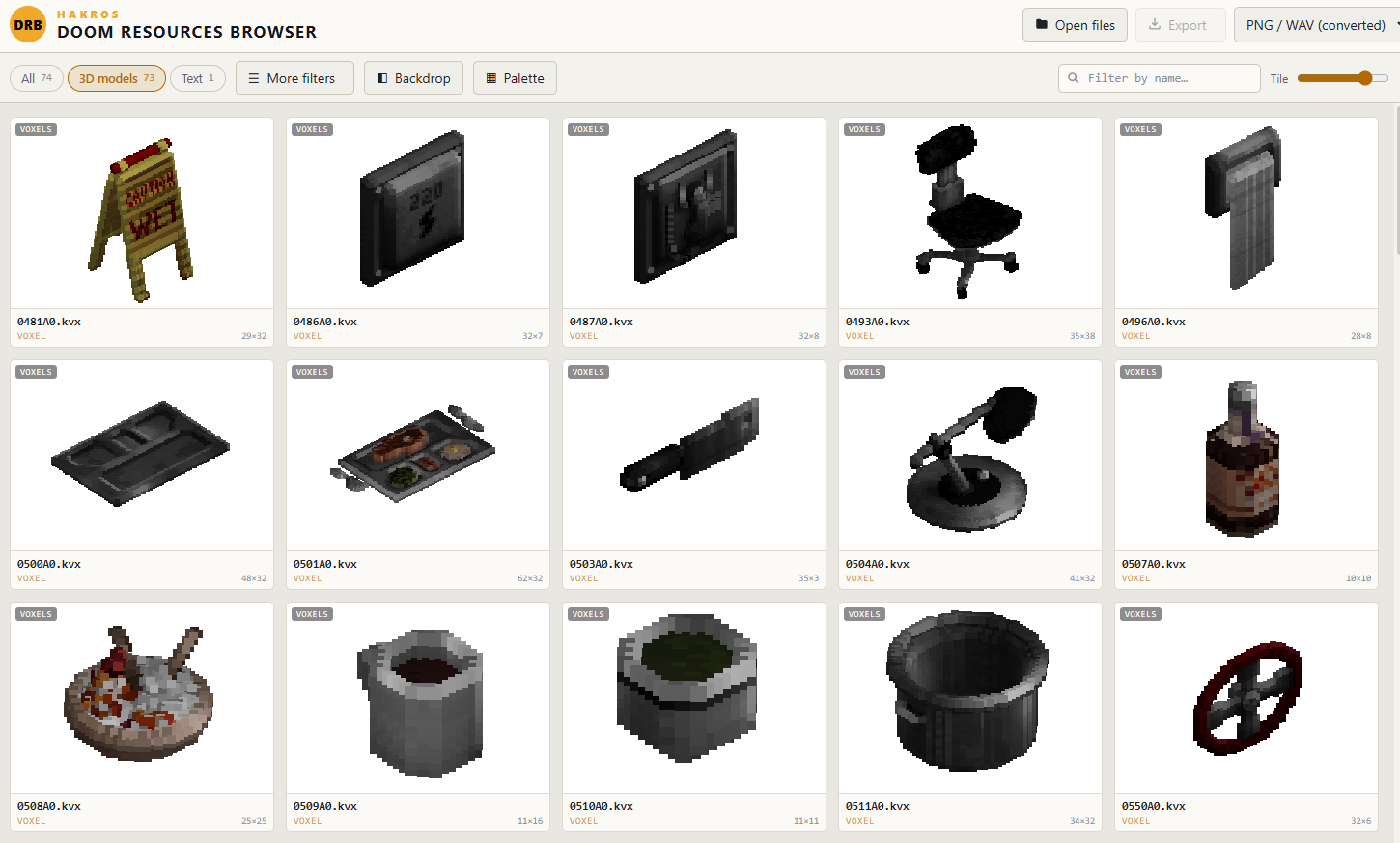
- 3D models and voxels — MDL, MD2, MD3, OBJ and KVX all render in an interactive viewer; drag to rotate. The preview panel shows a small view, and Open 3D viewer opens a full-screen one with zoom (slider or mouse wheel), auto-spin, a wireframe mode, its own background colour, and textures. Textures are found automatically from the skin names stored in the model, from a matching image name, or from the model's own folder; MDL skins embedded in the file are decoded directly, and Load texture… lets you apply any image of your own. Voxel models keep their own KVX palette.
- Anything unrecognised — a hex dump of the first bytes, which is usually enough to identify what you're looking at.
- Palettes —
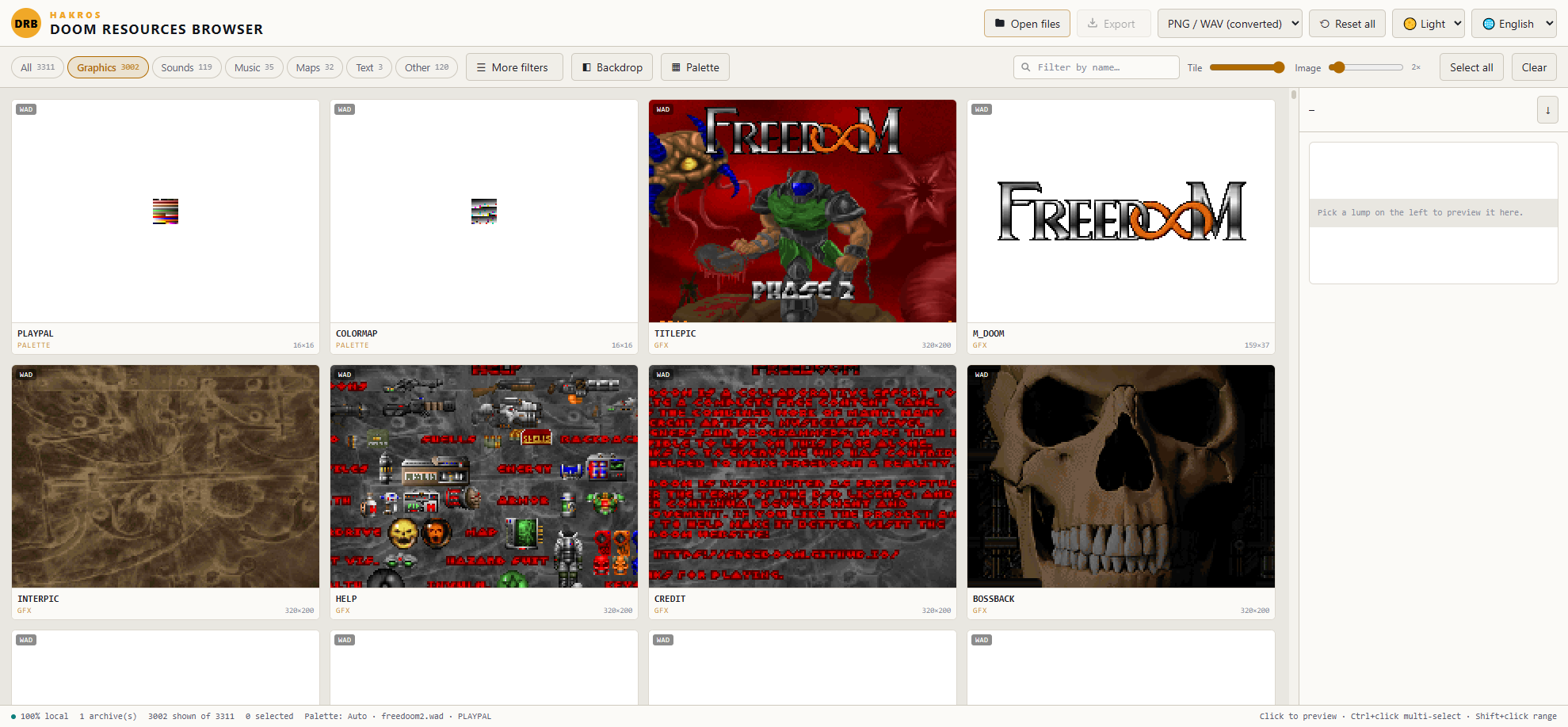
PLAYPALandCOLORMAPrender as a colour grid.
Maps
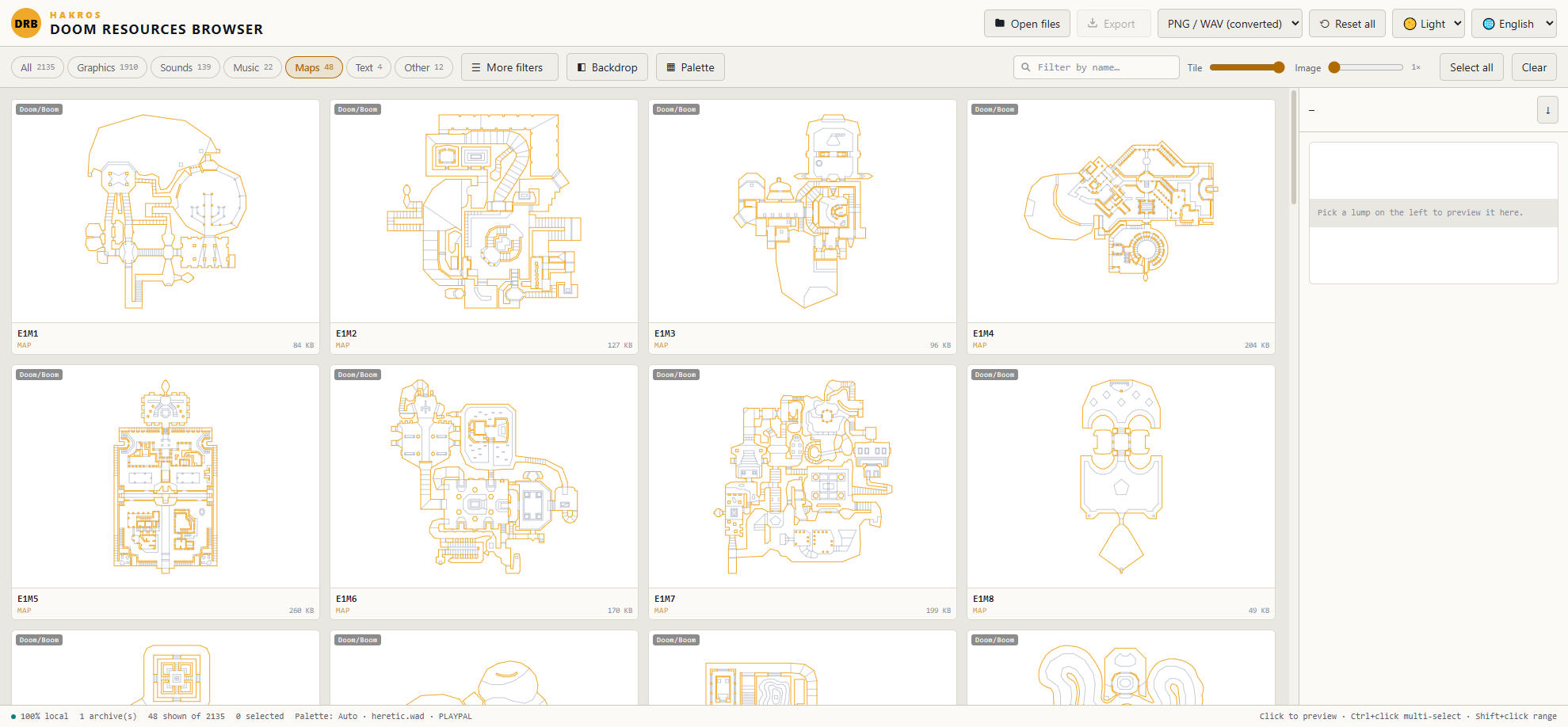
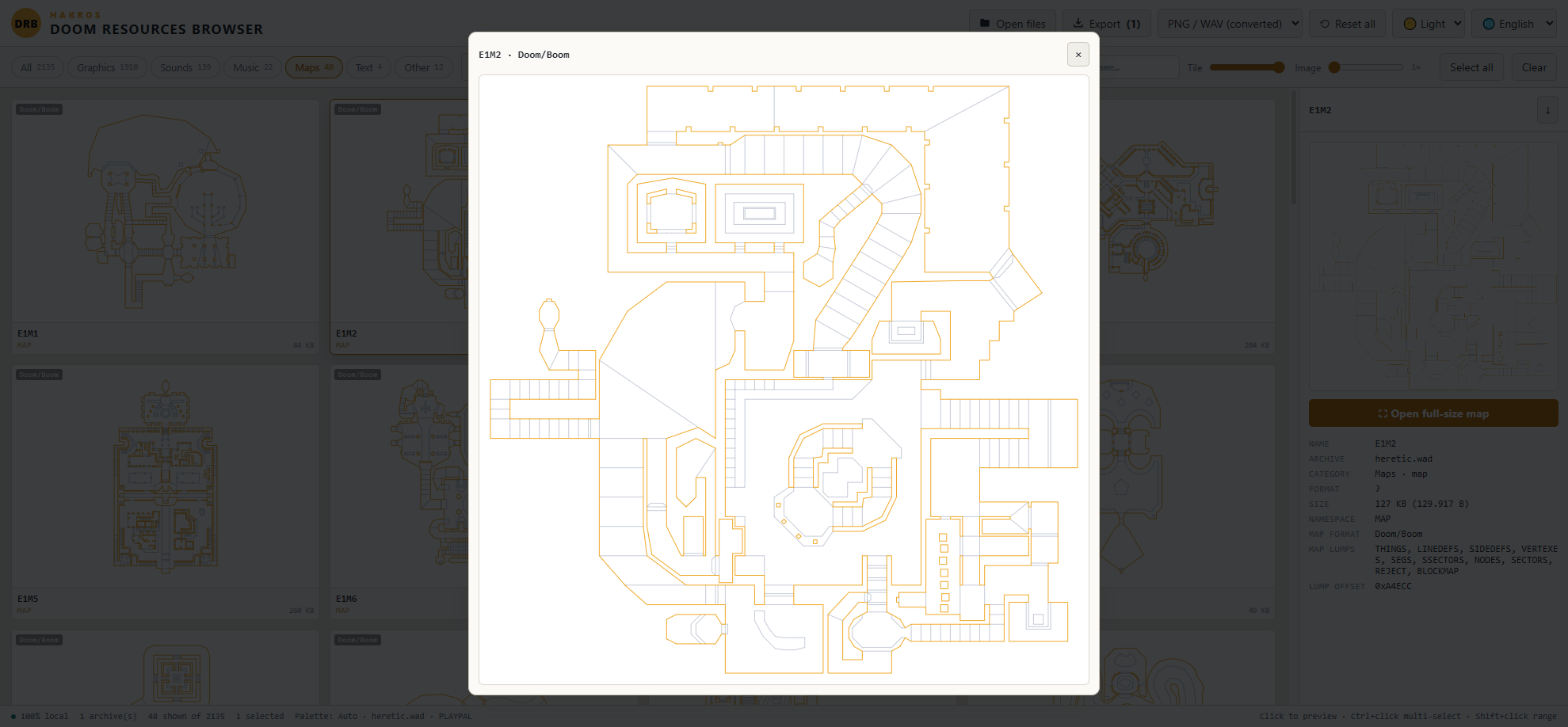
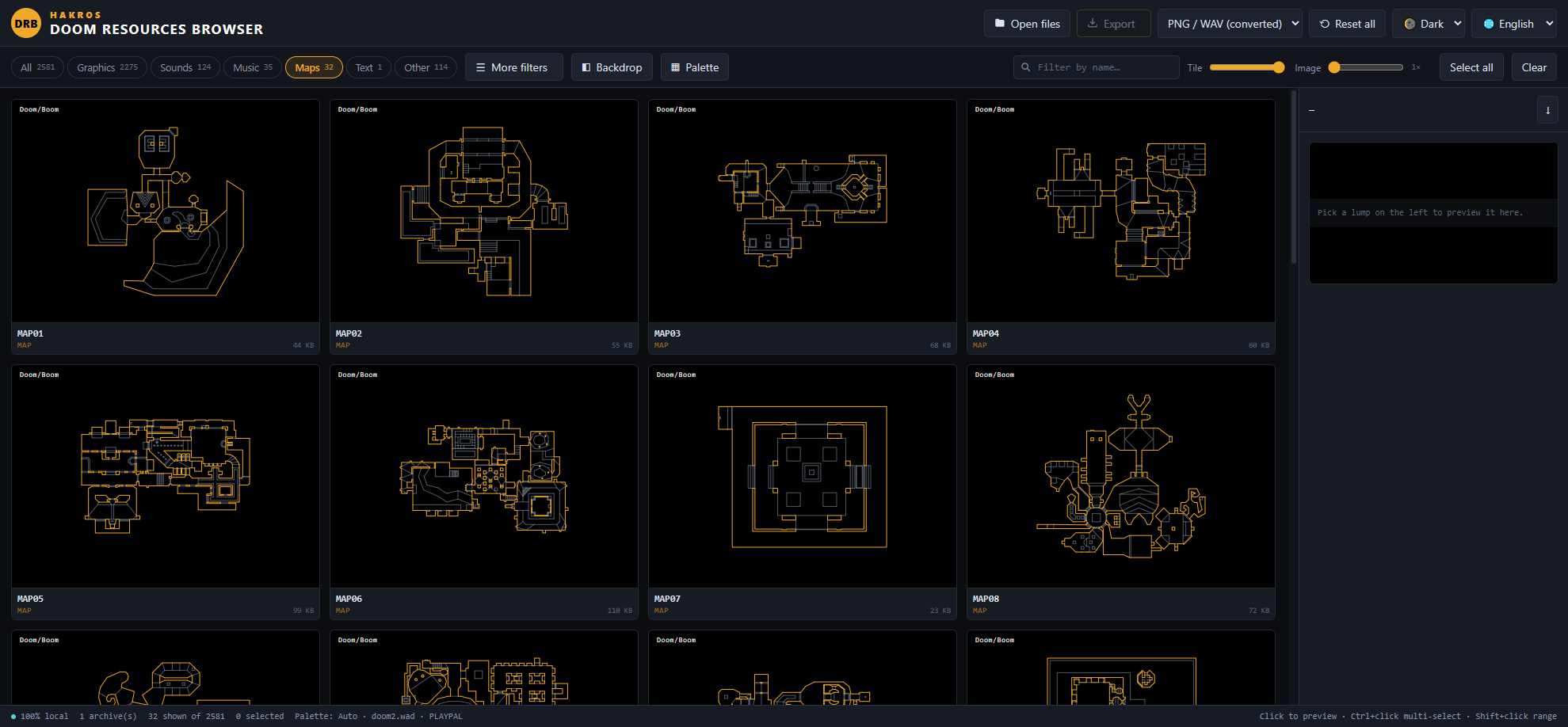
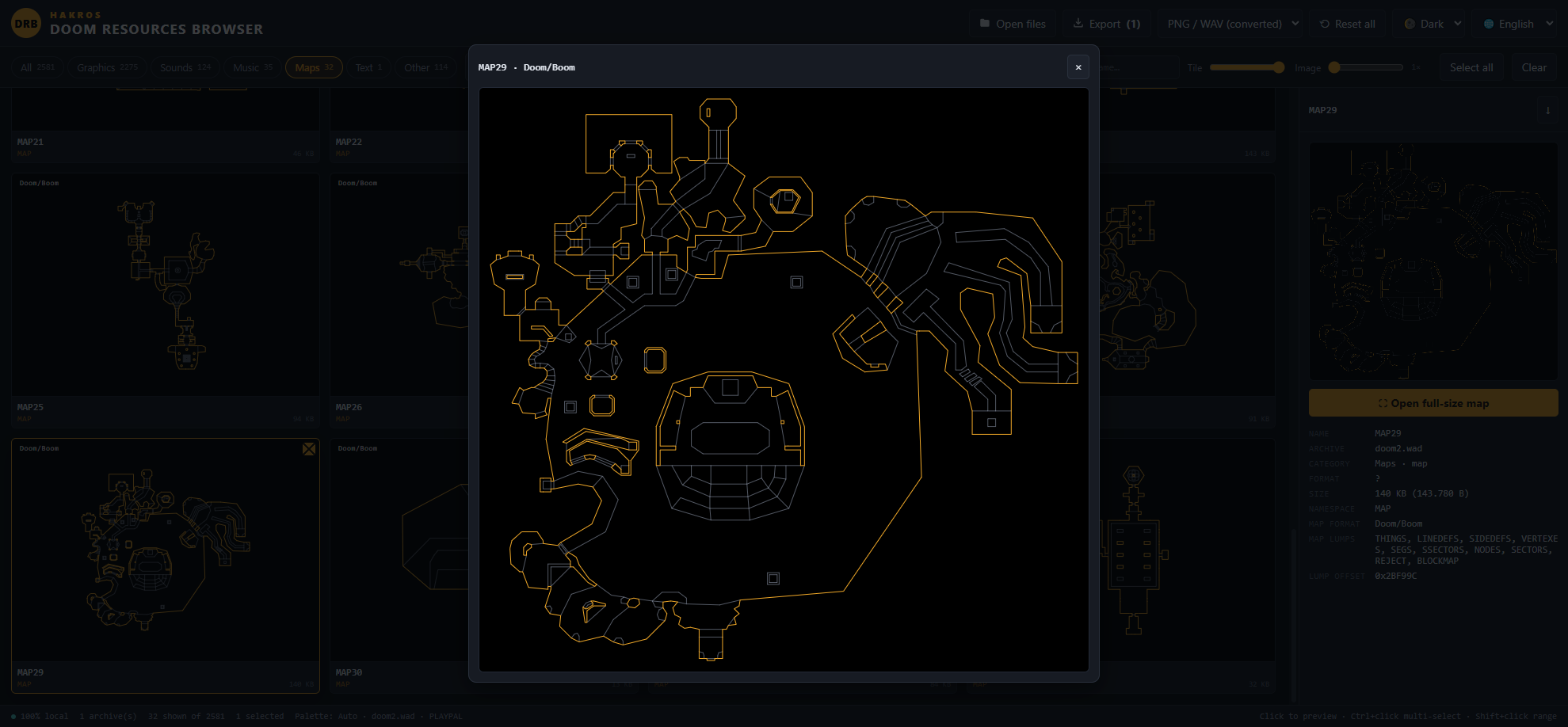
Maps are grouped into a single item rather than scattered across a dozen lumps, and their thumbnail is the automap, drawn from the geometry. Both classic formats (Doom, Boom, Hexen) and UDMF are supported, including maps whose TEXTMAP is full of comments. Solid lines are drawn in amber, two-sided ones in grey.
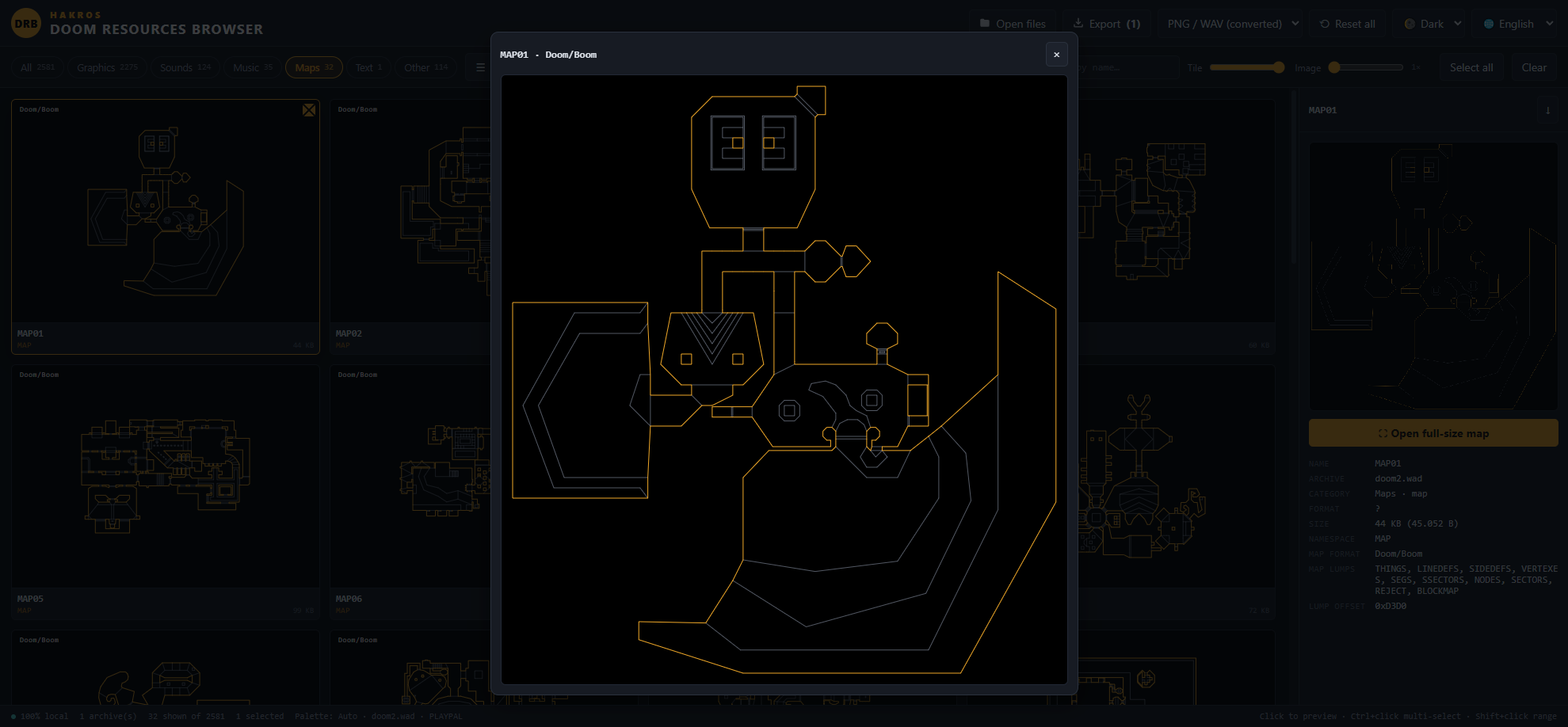
Select a map and the preview panel offers Open full-size map, which opens a centred overlay with the layout redrawn as large as your screen allows. Close it with the ✕, with Escape, or by clicking outside.
The metadata panel lists the map format and every lump the map is made of, which is a quick way to check whether a map has a BEHAVIOR (Hexen format), GL nodes, or a lightmap.
Selecting and exporting
Selecting:
- Click a tile to select it and preview it.
- Ctrl+click (Cmd+click on Mac) to add or remove individual tiles.
- Shift+click to select a range.
- Select all takes everything currently visible under your filters, which makes filters a selection tool: isolate a prefix, select all, export.
- Clear empties the selection. Ctrl+A also selects everything filtered.
Exporting. Pick a mode in the header dropdown:
- PNG / WAV (converted) — the default. Doom-format graphics and flats become full-resolution
.pngfiles with transparency preserved, DMX sounds become standard.wav, map layouts become.png. Everything else is written unchanged. - Original lump bytes — a byte-for-byte copy, for when you want the raw lump.
One item selected downloads as a single file. Several download as a .zip built in the browser, with PK3 folder structure preserved and WAD lumps grouped by namespace. Name collisions get a numeric suffix. Pressing Enter with a selection active also exports.
The download itself uses your browser's normal download flow, so files land in your Downloads folder unless you've told the browser to ask where to save.
Settings and resetting
Your preferences survive a refresh: theme, language, backdrop and custom colour, both sliders, the active category, the words and size filters, the export mode, and whether the filters panel was open. They're stored locally in the browser; if your browser blocks that (private windows, some embedded contexts), everything still works, it just won't remember.
Archives are not remembered — they live in memory only, so after a refresh you drop your files in again.
Reset all in the header clears the saved preferences, closes all open archives and returns everything to defaults.
When you open files while archives are already loaded, a dialog asks whether to add to current or close current files first. Dropping files does the same.
Keyboard shortcuts
| Key | Action |
|---|---|
| Ctrl/Cmd + click | Toggle one item in the selection |
| Shift + click | Select a range |
| Ctrl/Cmd + A | Select everything currently filtered |
| Enter | Export the selection |
| Escape | Close the map viewer, the palette menu or a dialog |
| Double-click | Reload the preview for a tile |
Known limitations
- Composite textures aren't assembled.
TEXTURE1/TEXTURE2definitions are not built fromPNAMESpatches, so you see the individual patches rather than the finished wall texture. - MD2, MD3 and voxel models are listed and export correctly, but only OBJ files render in the 3D viewer.
- MIDI, MUS and tracker music can't be played by browsers. Export them and use a player.
- Encrypted or password-protected archives aren't supported.
- Very large archives are limited by your browser's memory, since everything is held in RAM by design.
Troubleshooting
Colours look wrong on GFX items. No palette is available. Load the matching IWAD alongside your file, or set one from the Palette menu. See the palette section above.
Thumbnails are tiny. Raise the Image slider. Many Doom graphics genuinely are a few pixels across.
A lump shows a hex dump instead of a preview. The format wasn't recognised. It still exports fine with Original lump bytes.
Nothing appears after loading. Check the filter bar — a leftover prefix, word or size filter may be hiding everything. Reset filters clears them.
A map has no thumbnail. Its geometry lumps are missing or empty; some resource-only WADs contain map markers without map data.
The file won't open at all. Confirm it's a real WAD or ZIP-based archive. .pk7 files using 7-Zip's LZMA compression rather than ZIP deflate can't be read.
Download
Install instructions

Development log
- Release 1.27 hours ago
Leave a comment
Log in with itch.io to leave a comment.